



What is WP-CLI?
Most people manage WordPress by clicking buttons in the dashboard. WP-CLI is a different way to do it. It stands for WordPress Command Line Interface. Instead of using a mouse and a web browser, you type simple text commands into a terminal to manage your site.
Think of it as a remote control for your website. It allows you to do almost anything—update plugins, change passwords, or delete comments—without ever opening a browser.
Story Behind WP-CLI
WP-CLI is an open-source project, just like WordPress. This means people from all over the world work together to build it and keep it free for everyone.
It was started by developers Andreas Creten, Cristi Burcă, and Daniel Bachhuber. Today, it is led by Alain Schlesser with help from a large community of coders.
A. Staying Up to Date
To make sure it works perfectly with the latest WordPress features, WP-CLI gets updated often. You can expect a new version every three to four months. These updates usually bring:
- New commands to help you do more.
- Faster performance to save you time.
- Bug fixes to keep things running smoothly.
B. Built for Speed
The main goal of WP-CLI is to make life easier for developers. Once you learn the basics, you can manage one site—or even a hundred sites—much faster than before. It allows you to automate boring tasks that you simply couldn’t do inside the standard WordPress dashboard.
Why use WP-CLI?
The main reason pros use WP-CLI is that it is much faster and more reliable than the standard WordPress dashboard. Here is how it makes your life easier:
A. Save Massive Amounts of Time
In the dashboard, you have to click through many different screens to get things done. With WP-CLI, you type one command, and it’s finished in seconds. This is a game-changer when you are setting up new sites or managing old ones.
B. Fix Broken Sites
If a plugin or a theme crashes your site, you might get locked out of your admin dashboard. Normally, this is a nightmare. With WP-CLI, you can disable the broken plugin or reset a password right from the command line to get back inside.
C. Do More Without Extra Plugins
Some tasks are hard to do in the dashboard without installing extra plugins. WP-CLI lets you do these things naturally:
- Database work: Clean up or search your database safely.
- Bulk actions: Install and activate 10 plugins at once.
- Dummy content: Generate 50 fake posts instantly to test a design.
- Rollbacks: Easily go back to an older version of WordPress if an update fails.
D. Put Your Site on Autopilot
You can group commands into a “script.” This means you can run one single file that automatically sets up a new site, configures the settings, creates a user, and installs your favorite themes.
To get the best out of WP-CLI, you need a server that gives you full control. A powerful WordPress hosting provider like VPS Malaysia offers the speed and flexibility you need to manage your WordPress sites effectively.
Get A Reliable WordPress Hosting →
Step 1: Installing WP-CLI
To get started, you need to download the WP-CLI file to your server. This file comes in a format called Phar, which is just a simple way to package PHP applications so they are easy to run.
A. Download the file
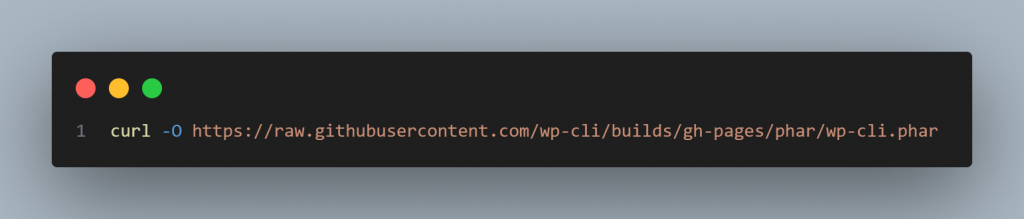
First, use the curl Command to download the tool:
B. Test the download
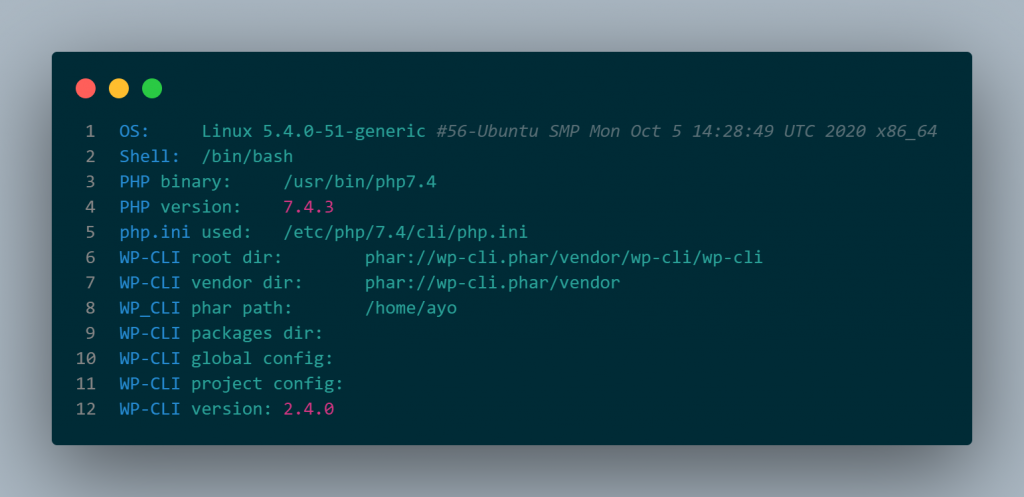
Before we go further, let’s make sure it works. Run this command:
php wp-cli.phar --infoIf everything is correct, you will see a list of details about your server, your PHP version, and the WP-CLI version (like 2.4.0).
C. Make it easy to use
Right now, the file is just a basic download. You need to give it “permission” to run as a program. Use this command:
chmod +x wp-cli.pharNext, we want to be able to just type wp from any folder instead of typing the whole file name. To do this, move the file to a special system folder and rename it:
sudo mv wp-cli.phar /usr/local/bin/wpD. Verify the installation
Now, let’s check if the shortcut works. Simply type:
wp cli versionYou should see the version number again. Congratulations! You have successfully installed WP-CLI and are ready to start using it.
Step 2: Managing WordPress Plugins
Clicking through the WordPress dashboard to manage plugins is slow. With WP-CLI, you can do it in seconds.
First, make sure you are in your WordPress folder. Open your terminal and type:
cd /var/www/wordpress(Note: Change the path above to match where your website files are stored.)
A. See Your Plugins
To see a list of every plugin on your site, use this command:
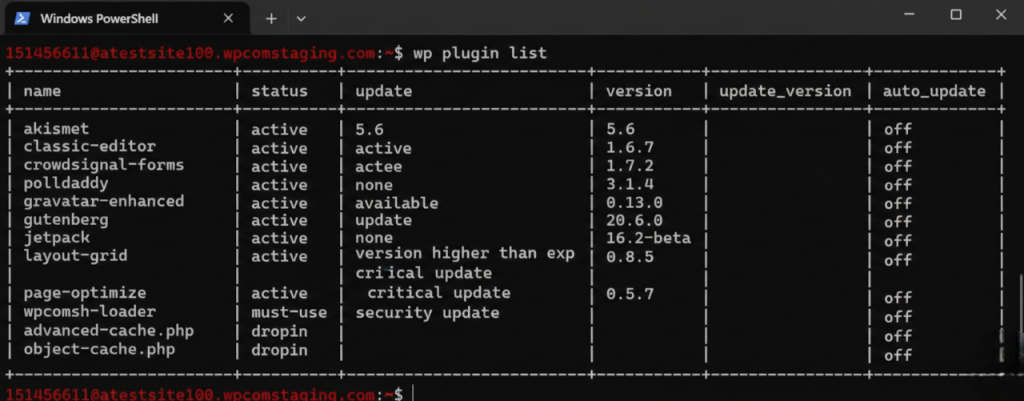
wp plugin listYou will see a neat table showing which plugins are active, their version numbers, and if an update is available.
B. Search and Install
You don’t need to open a browser to find new plugins. You can search the WordPress repository directly:
wp plugin search seoLook at the slug column in the results. This is the “ID” of the plugin. To install one (or several at once), use the install command:
wp plugin install jetpack wordpress-seoPro Tips:
- Activate while installing: Add
--activateto the end of your install command to turn it on immediately. - Install a specific version: Use
--version=8.0If you need an older version. - Install from a link: You can paste a direct link
.zipURL to install premium or custom plugins.
C. Activate, Deactivate, and Update
Managing the status of your plugins is very simple:
- To Activate:
wp plugin activate jetpack - To Deactivate:
wp plugin deactivate jetpack - To Update:
wp plugin update akismet(or use--allto update everything at once.)
If your site crashes and you don’t know why, you can turn off all plugins at once to fix it:
wp plugin deactivate --allD. Delete Plugins
When you no longer need a plugin, remove it completely with the delete command:
wp plugin delete redirectionUsing these commands is much faster than waiting for dashboard pages to load.
Step 3: Managing WordPress Themes
Managing themes with WP-CLI is almost exactly like managing plugins. It’s fast, simple, and you don’t have to wait for the customizer to load.
A. See Your Current Themes
To find out which themes are already on your site, type:
wp theme listYou will see a list of installed themes. The one labeled active is the one your site is currently using.
B. Search for a New Look
Want a new design? You can search the WordPress theme directory without leaving your terminal. For example, to find themes related to “color,” run:
wp theme search colorThis will show you a list of themes, their ratings, and their slug (the name you use to install it).
C. Install and Activate
Once you find a theme you like, you can install and turn it on with one command. Let’s use the theme ColorMag as an example:
wp theme install colormag --activateYour site will immediately switch to the new theme.
D. Keep Things Updated
Old themes can be a security risk. To update all of your themes at once, use this simple command:
wp theme update --allE. Need Help?
If you ever forget a command or want to see more options, you can use the built-in help manual. Just type:
wp help themeThis works for any command! It’s like having a cheat sheet right inside your terminal.
Step 4: Managing Posts and Pages
You don’t always need a visual editor to write or manage content. If you like using terminal editors like Nano or Vim, you can handle your posts directly from the command line.
A. View and Delete Posts
To see a list of all your current posts, type:
wp post listThis shows you the ID number for each post. If you want to delete a post (for example, the “Hello World” post with ID 1), just run:
wp post delete 1B. Create a New Post
You can create and publish a post instantly with one command:
wp post create --post_status=publish --post_title="My New Post" --edit- –post_status: Set this to
publishto go live immediately, ordraftto save it for later. - –edit: This opens your terminal’s text editor so you can type the post body right away.
C. Import Content from a File
If you have a text file ready on your server, you can turn it into a WordPress post easily:
wp post create ./my-file.txt --post_title="Imported Post" --post_status=publishTo create a Page instead of a Post, just add --post_type=page to your command.
D. Generate Dummy Data
If you are testing a new theme and need a lot of content quickly, WP-CLI can “generate” it for you. To create 20 fake posts instantly, run:
wp post generate --count=20E. Clean Up Old Revisions
WordPress saves a copy of your post every time you click “Save.” Over the years, thousands of these revisions can slow down your database. You can delete all of them at once with this “hack”:
wp post delete $(wp post list --post_type='revision' --format=ids) --forceThis command finds all revisions and permanently deletes them, making your site leaner and faster.
Step 5: Managing Your Database
One of the best things about WP-CLI is how it handles your database. Normally, you would need a tool like phpMyAdmin, but WP-CLI lets you do everything from the terminal.
A. Access the Database Directly
If you want to run manual SQL commands, you can jump straight into the MySQL prompt by typing:
wp db cliWhen you are done, just type exit to go back to the normal terminal.
B. Run Quick Queries
You don’t always need to enter the full MySQL shell. You can run a single query like this:
wp db query "SELECT user_login,ID FROM wp_users;"This is a fast way to check user IDs or site settings without leaving your command line.
C. Backup and Restore
Backing up your site is critical. WP-CLI makes it a one-second job.
- To Back up (Export): Run
wp db export. This creates a.sqlfile that contains your entire site’s data (posts, users, and settings). - To Restore (Import): If you need to move your site or fix a mistake, run
wp db import filename.sql.
D. Search and Replace (The Magic Hack)
If you move your site to a new domain (e.g., from example.com to example.net). You usually have to update thousands of links. WP-CLI can do this instantly.
First, do a dry run to see how many changes will happen without actually changing anything:
wp search-replace --dry-run 'example.com' 'example.net'If the numbers look correct, run the real command:
wp search-replace 'example.com' 'example.net'E. Other Database Tasks
There is a lot more you can do. You can optimize your database to make it faster or reset it entirely if you want to start over. To see all the database tricks, type:
wp help dbConclusion
WP-CLI is a must-have tool for WordPress developers and site owners. It takes the guesswork out of maintenance and makes managing your site much faster than using the standard dashboard.
In this guide, we covered the basics of installation and some of the most helpful hacks for managing plugins, themes, content, and databases.
A. What’s Next?
We have only scratched the surface. WP-CLI has hundreds of commands and a huge community that builds extra tools for it.
- Keep exploring: Whenever you want to learn more about a command, just type
wp help <command>. - Practice: Start with small tasks like updating plugins, and soon you’ll be writing scripts to automate your entire workflow.
By moving your work to the command line, you’ll save hours and manage your WordPress sites like a true pro.
Leave a Reply