




1. Introduction
When you’re running a web application in production, one of the first things you’ll need is a reliable way to manage and route incoming traffic. That’s where Nginx comes in — and more specifically, its powerful reverse proxy capabilities.
A reverse proxy sits between your clients (browsers, mobile apps, etc.) and your backend servers. Instead of clients communicating directly with your application server, all requests go through Nginx first. This offers a wide range of benefits, including improved security, performance, scalability, and flexibility.
In this guide, you will learn how to install and configure Nginx as a reverse proxy on Ubuntu, how to forward traffic to backend applications like Node.js or Python, how to configure proxy headers, enable HTTPS with Let’s Encrypt, set up load balancing, enable caching, and troubleshoot the most common issues.
A. Prerequisites
- A server running Ubuntu 20.04, 22.04, or 24.04.
- A non-root user with sudo privileges.
- A domain name pointed to your server (recommended for SSL).
- A backend application running on a local port (e.g., Node.js on port 3000).
- Basic familiarity with the Linux command line.
2. Understanding Nginx and Reverse Proxy Concepts

A. What is Nginx?
Nginx (pronounced “engine-x”) is a high-performance, open-source web server, reverse proxy, load balancer, and HTTP cache. Originally developed by Igor Sysoev in 2004 to solve the C10K problem — handling 10,000 simultaneous connections — Nginx is now one of the most widely used web servers on the internet, powering millions of websites, including some of the busiest platforms in the world.
Unlike traditional web servers that use a thread-per-connection model, Nginx uses an asynchronous, event-driven architecture that allows it to handle a massive number of concurrent connections with very low memory usage. This makes it ideal for high-traffic applications.
B. Forward Proxy vs. Reverse Proxy
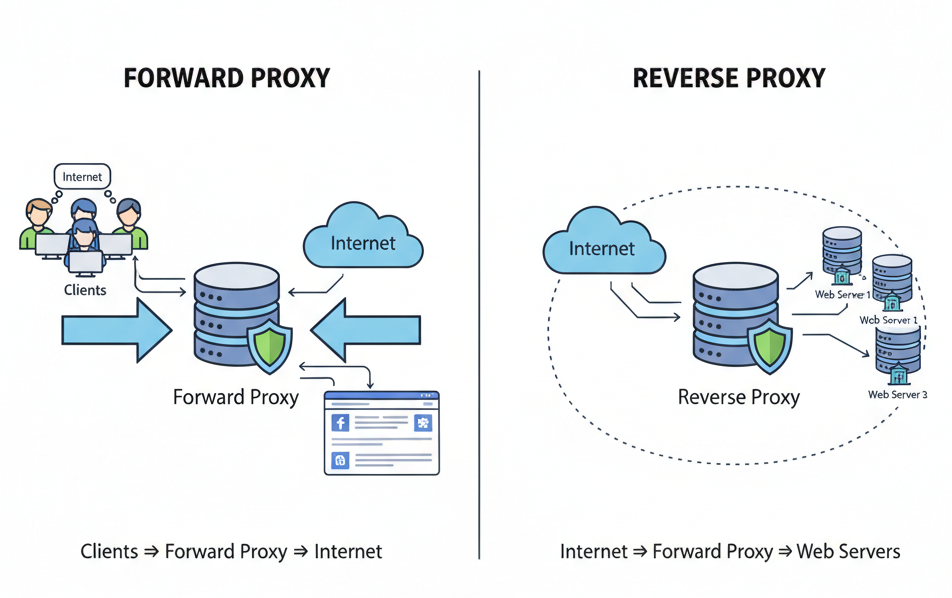
It is important to understand the difference between a forward proxy and a reverse proxy:
- Forward Proxy: Sits between the client and the Internet on behalf of the client. It hides the client’s identity from external servers. Commonly used in corporate networks or for bypassing geo-restrictions.
- Reverse Proxy: Sits between the internet and your backend servers, acting on their behalf. It hides the backend infrastructure from clients. Commonly used in web hosting, APIs, and microservices.
C. Common Use Cases of Nginx as a Reverse Proxy
- Load Balancing — Distribute incoming traffic across multiple backend servers to prevent overload and ensure availability.
- SSL Termination — Handle HTTPS encryption/decryption at the Nginx layer so backend servers don’t need to manage SSL certificates.
- Caching — Store responses from backend servers and serve them directly to clients, reducing backend load and improving response time.
- Security — Hide backend server details (IP addresses, ports, technology stack) from public-facing clients.
- URL Routing — Route different URL paths to different backend services (e.g.,
/apito a Node.js server,/staticto a file server). - Compression — Enable Gzip compression to reduce the size of responses sent to clients.
3. Prerequisites & System Requirements
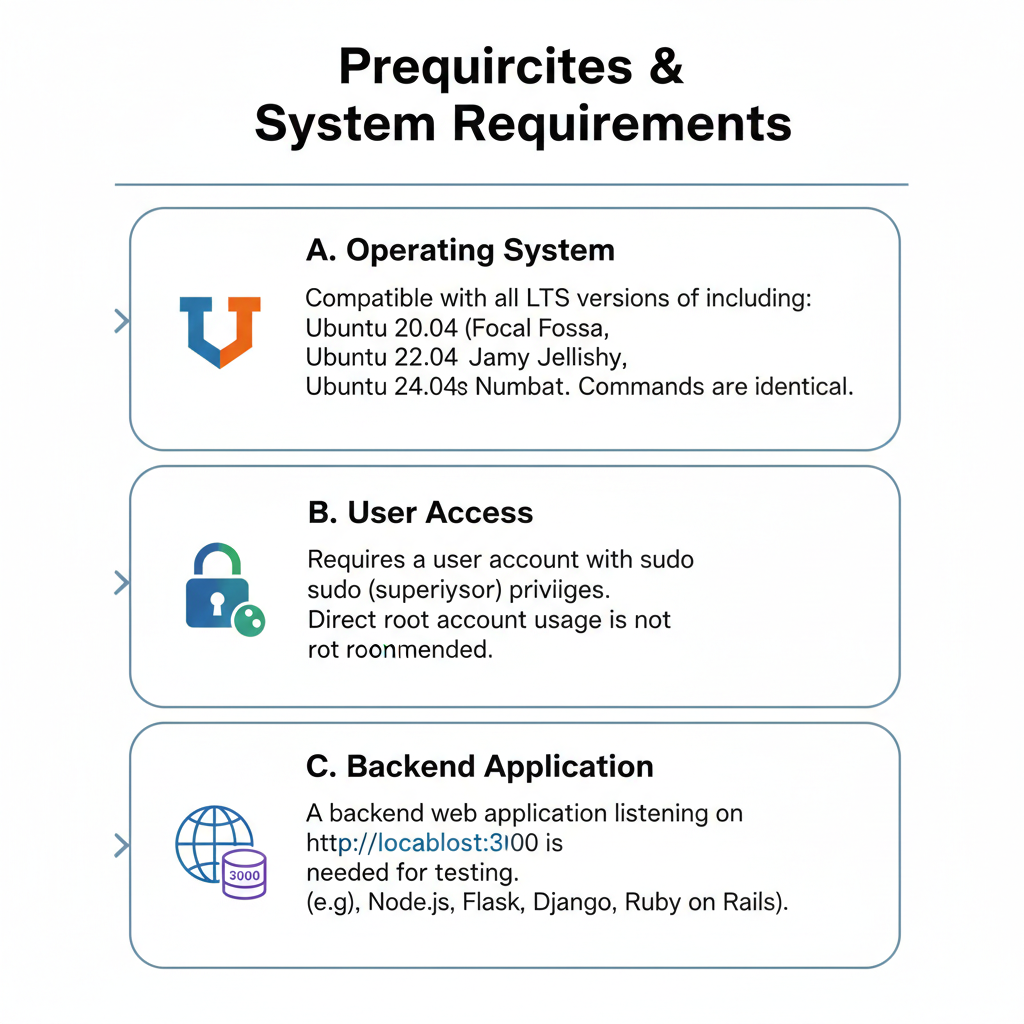
Before you begin, ensure your system meets the following requirements:
A. Operating System
This guide is compatible with all LTS versions of Ubuntu, including Ubuntu 20.04 (Focal Fossa), Ubuntu 22.04 (Jammy Jellyfish), and Ubuntu 24.04 (Noble Numbat). The commands and configuration syntax are identical across these versions.
B. User Access
You need a user account with sudo (superuser) privileges. Using the root account directly is not recommended for security reasons.
C. Backend Application
To test the reverse proxy configuration, you need a backend application listening on a local port. For this tutorial, we will assume a web application running on http://localhost:3000. This could be a Node.js app, a Python Flask/Django app, a Ruby on Rails app, or any other HTTP server.
📝 Note: If you do not have a backend app running yet, you can quickly start a simple Python HTTP server for testing with: python3 -m http.server 3000
4. Step 1 — Installing Nginx on Ubuntu
The first step is to install Nginx using the apt package manager, which is the default package manager on Ubuntu.
A. Update System Packages
Before installing any new software, always update the package index to ensure you get the latest version:
sudo apt update sudo apt upgrade -yB. Install Nginx
Now install Nginx with the following command:
sudo apt install nginx -yC. Start and Enable Nginx
Once installed, start the Nginx service and enable it to start automatically on system boot:
sudo systemctl start nginx sudo systemctl enable nginxD. Verify Nginx is Running
Check the status of the Nginx service to confirm it is running correctly:
sudo systemctl status nginxYou should see output showing the service as active (running). You can also verify by opening your server’s IP address in a browser — you should see the default Nginx welcome page.
E. Allow Nginx Through the UFW Firewall
Ubuntu uses UFW (Uncomplicated Firewall) by default. Allow HTTP and HTTPS traffic through the firewall:
sudo ufw allow 'Nginx Full' sudo ufw status💡 Tip: ‘Nginx Full’ allows both port 80 (HTTP) and port 443 (HTTPS). If you only need HTTP for now, you can use ‘Nginx HTTP’ instead.
5. Step 2 — Understanding the Nginx Configuration Structure
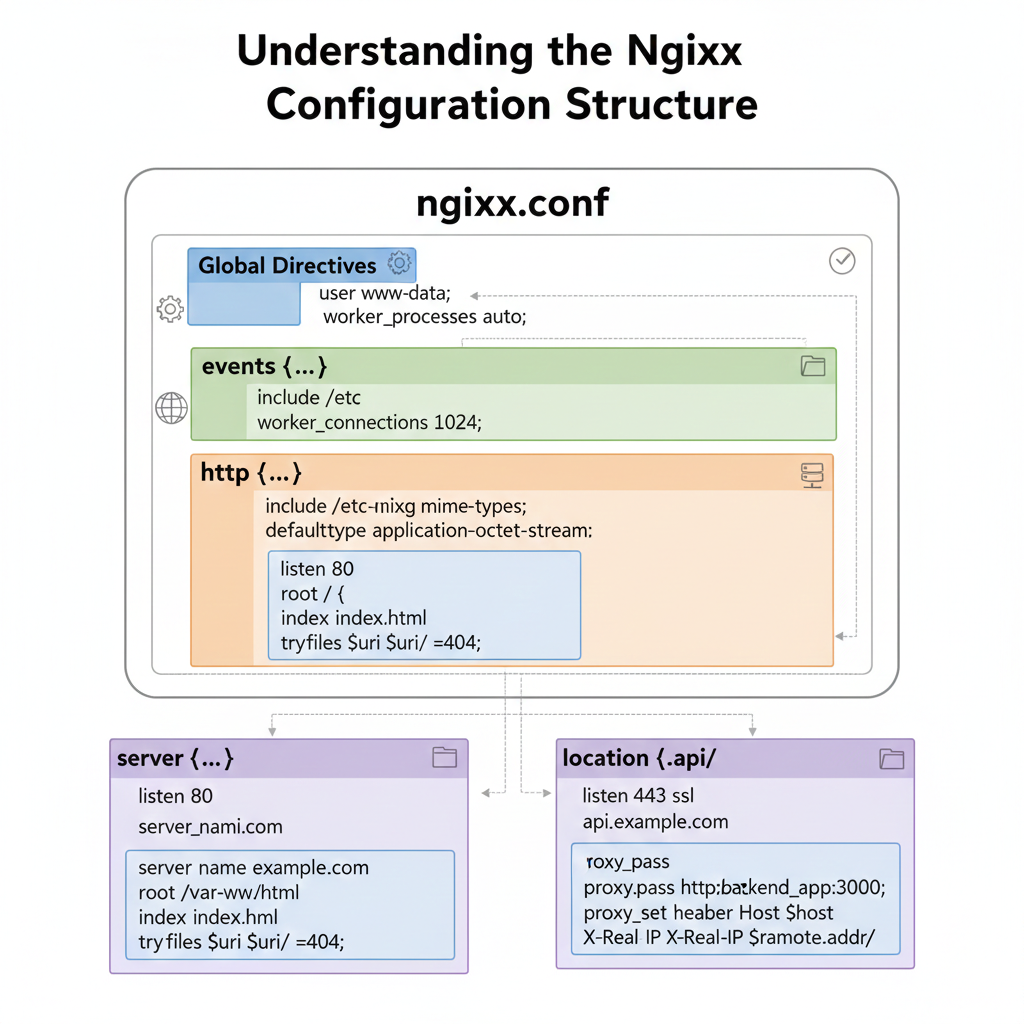
Before writing any configuration, it is essential to understand how Nginx organizes its configuration files on Ubuntu.
A. The Main Configuration File
The main Nginx configuration file is located at /etc/nginx/nginx.conf. This file defines global settings such as the number of worker processes, connection limits, logging paths, and includes references to other configuration files. In most cases, you will not need to edit this file directly.
B. sites-available vs. sites-enabled
Ubuntu’s version of Nginx uses a convention borrowed from Apache to manage virtual host configurations:
/etc/nginx/sites-available/— This directory contains all available server block configuration files. Files here are not active until they are linked to sites-enabled./etc/nginx/sites-enabled/— This directory contains symbolic links to the active configuration files from sites-available. Nginx reads configurations from this directory.
This separation allows you to prepare configurations without immediately activating them, and easily enable or disable sites by adding or removing symlinks.
C. Understanding Server Blocks
In Nginx, a server block (equivalent to Apache’s VirtualHost) defines how Nginx handles requests for a specific domain or IP address and port combination. Here is the basic structure of a server block:
server {
    listen 80;
    server_name example.com www.example.com;

    location / {
        # directives go here
    }
}
D. The proxy_pass Directive
The proxy_pass directive is the heart of Nginx’s reverse proxy functionality. It tells Nginx to forward requests to another server. For example:
proxy_pass http://localhost:3000;This single directive forwards all matching requests to your backend application running on port 3000.
6. Step 3 — Configuring Nginx as a Basic Reverse Proxy
Now let’s create an actual reverse proxy configuration. We will create a new server block file for your domain.
A. Create a New Server Block Configuration File
Create a new configuration file in sites-available:
sudo nano /etc/nginx/sites-available/myappAdd the following configuration (replace example.com with your domain or server IP):
server {
    listen 80;
    server_name example.com www.example.com;

    location / {
        proxy_pass http://localhost:3000;
        proxy_http_version 1.1;

        proxy_set_header Host $host;
        proxy_set_header X-Real-IP $remote_addr;
        proxy_set_header X-Forwarded-For $proxy_add_x_forwarded_for;
        proxy_set_header X-Forwarded-Proto $scheme;

        proxy_cache_bypass $http_upgrade;
    }
}
B. Enable the Configuration
Create a symbolic link from sites-available to sites-enabled to activate the configuration:
sudo ln -s /etc/nginx/sites-available/myapp /etc/nginx/sites-enabled/C. Remove the Default Site (Optional)
If you want your new site to be the default, remove the default configuration:
sudo rm /etc/nginx/sites-enabled/defaultD. Test the Nginx Configuration
Always test the configuration for syntax errors before reloading:
sudo nginx -tIf the configuration is valid, you will see:
nginx: the configuration file /etc/nginx/nginx.conf syntax is ok nginx: configuration file /etc/nginx/nginx.conf test is successfulE. Reload Nginx
Apply the changes by reloading Nginx:
sudo systemctl reload nginx💡 Tip: Use ‘reload’ instead of ‘restart’ whenever possible. Reload applies configuration changes gracefully without dropping existing connections.
7. Step 4 — Setting Up Proxy Headers for Better Performance
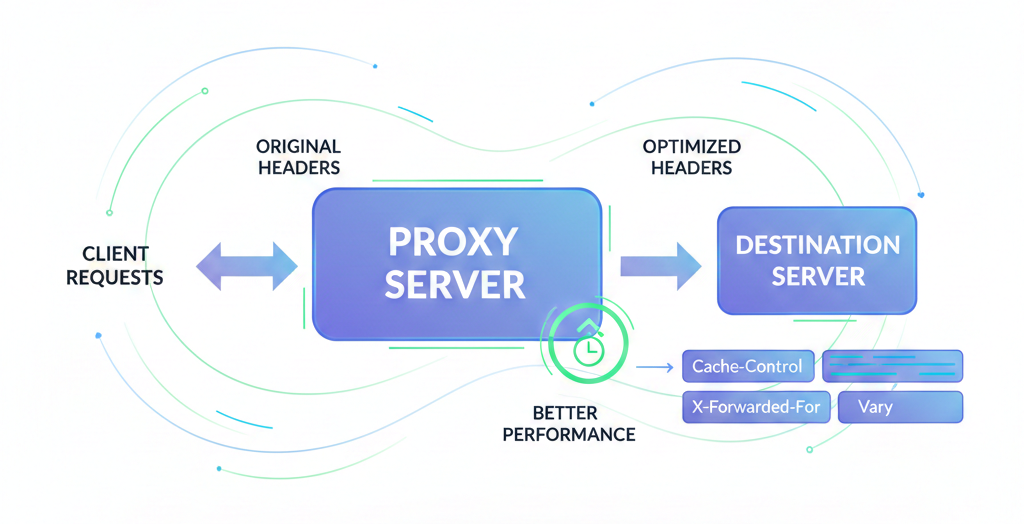
Proxy headers are crucial for ensuring that your backend application receives accurate information about the original client request. Without proper headers, your backend will only see requests from 127.0.0.1 (the Nginx server itself) instead of the real client IP addresses.
A. Essential Proxy Headers Explained
proxy_set_header Host $host;
Passes the original Host header from the client request to the backend. This is important when your backend serves multiple domains.
proxy_set_header X-Real-IP $remote_addr;
Passes the real IP address of the client to the backend. Without this, your application logs will show Nginx’s IP instead of the real visitor’s IP.
proxy_set_header X-Forwarded-For $proxy_add_x_forwarded_for;
Passes a comma-separated list of IP addresses representing the client and any intermediate proxies. Useful for tracking the full proxy chain.
proxy_set_header X-Forwarded-Proto $scheme;
Tells the backend whether the original request came over HTTP or HTTPS. This is especially important when your backend needs to generate correct redirect URLs.
B. Timeout Configuration
You can also configure connection and response timeouts to avoid hanging connections:
proxy_connect_timeout 60s;
proxy_send_timeout    60s;
proxy_read_timeout    60s;
C. WebSocket Support
If your application uses WebSockets (e.g., Socket.IO, real-time apps), add these additional headers:
proxy_set_header Upgrade $http_upgrade;
proxy_set_header Connection 'upgrade';
proxy_http_version 1.1;
8. Step 5 — Securing the Reverse Proxy with SSL/TLS (HTTPS)
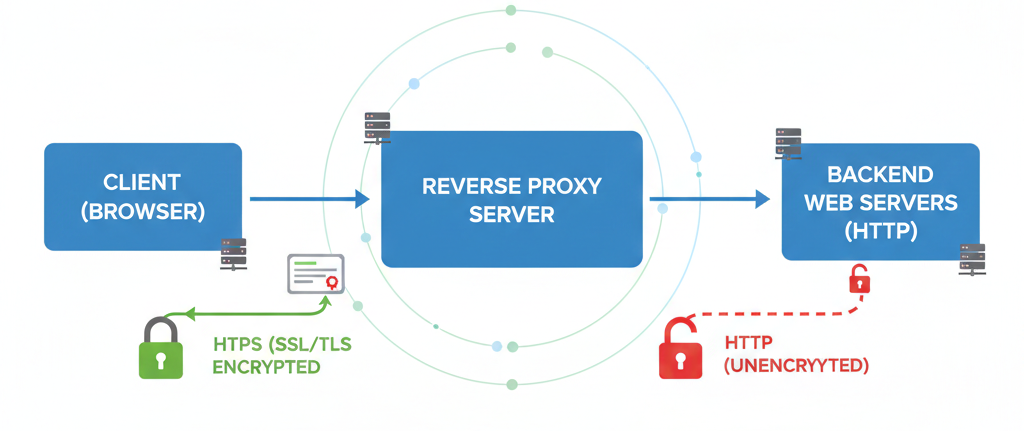
Running your reverse proxy over HTTPS is essential for security. It encrypts all traffic between your users and your server, protects sensitive data, and is required for modern browser features. Let’s Encrypt provides free, trusted SSL certificates that are easy to install.
A. Install Certbot
Certbot is the official client for Let’s Encrypt. Install Certbot and the Nginx plugin:
sudo apt install certbot python3-certbot-nginx -yB. Obtain an SSL Certificate
Run Certbot with the --nginx flag to automatically obtain and configure a certificate for your domain:
sudo certbot --nginx -d example.com -d www.example.comCertbot will ask for your email address, prompt you to agree to the terms of service, and then automatically modify your Nginx configuration to enable HTTPS. It will also ask if you want to redirect all HTTP traffic to HTTPS — select Yes (option 2).
C. Verify Auto-Renewal
Let’s Encrypt certificates expire every 90 days. Certbot installs a systemd timer to automatically renew them. Verify the renewal process works correctly:
sudo certbot renew --dry-run📝 Note: If the dry-run completes without errors, your certificates will be renewed automatically before they expire.
D. Your Final HTTPS Configuration
After running Certbot, your Nginx configuration will look similar to this:
server {
    listen 443 ssl;
    server_name example.com www.example.com;

    ssl_certificate /etc/letsencrypt/live/example.com/fullchain.pem;
    ssl_certificate_key /etc/letsencrypt/live/example.com/privkey.pem;

    location / {
        proxy_pass http://localhost:3000;
        proxy_set_header Host $host;
        proxy_set_header X-Real-IP $remote_addr;
        proxy_set_header X-Forwarded-For $proxy_add_x_forwarded_for;
        proxy_set_header X-Forwarded-Proto $scheme;
    }
}

server {
    listen 80;
    server_name example.com www.example.com;
    return 301 https://$host$request_uri;
}
9. Step 6 — Configuring Load Balancing with Nginx (Optional)
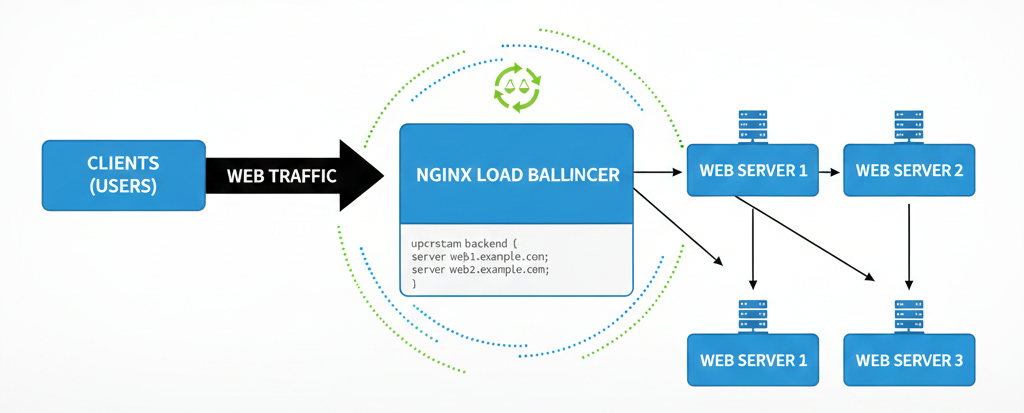
One of Nginx’s most powerful features is its ability to distribute traffic across multiple backend servers. This is called load balancing, and it helps ensure your application remains available and responsive even under heavy traffic.
A. Defining an Upstream Block
To configure load balancing, you define a group of backend servers using the upstream directive:
upstream myapp_backend {
    server 127.0.0.1:3000;
    server 127.0.0.1:3001;
    server 127.0.0.1:3002;
}

server {
    listen 80;
    server_name example.com;

    location / {
        proxy_pass http://myapp_backend;
    }
}
B. Load Balancing Methods
- Round Robin (default): Requests are distributed evenly across all servers in sequence. No additional configuration is needed.
- Least Connections: Requests are sent to the server with the fewest active connections. Add
least_conn;inside the upstream block. - IP Hash: Requests from the same client IP are always routed to the same backend server. Useful for session persistence. Add
ip_hash;inside the upstream block.
upstream myapp_backend {
    least_conn;  # or ip_hash;
    server 127.0.0.1:3000;
    server 127.0.0.1:3001;
}
C. Adding Server Weights
You can assign weights to servers to direct more traffic to more powerful machines:
upstream myapp_backend {
    server 127.0.0.1:3000 weight=3;  # receives 3x more traffic
    server 127.0.0.1:3001 weight=1;
}
10. Step 7 — Enabling Caching in Nginx Reverse Proxy (Optional)
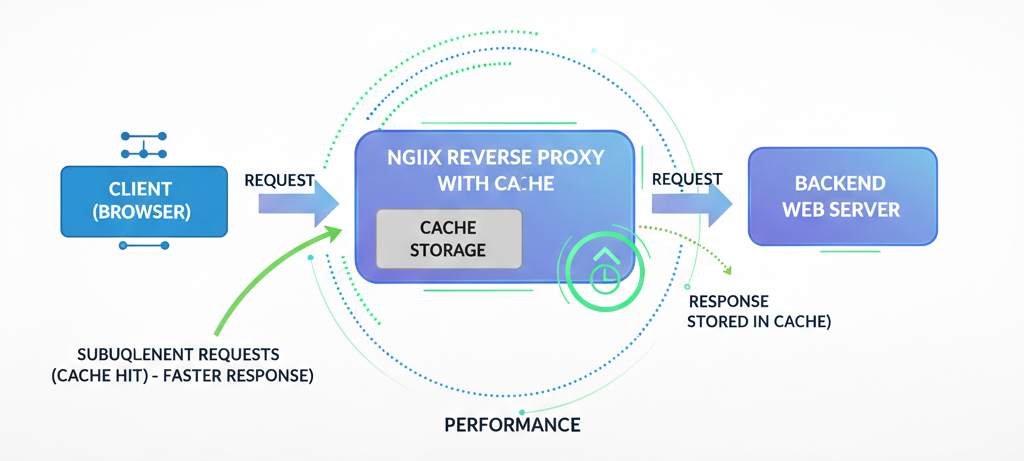
Proxy caching allows Nginx to store responses from your backend server and serve them directly to subsequent clients. This dramatically reduces the load on your backend and improves response times for your users.
A. Configure the Cache Path
First, define the cache storage location in the http block of /etc/nginx/nginx.conf:
http {
    proxy_cache_path /var/cache/nginx
        levels=1:2
        keys_zone=my_cache:10m
        max_size=1g
        inactive=60m
        use_temp_path=off;
    ...
}
B. Enable Caching in Your Server Block
location / {
    proxy_cache my_cache;
    proxy_pass http://localhost:3000;
    proxy_cache_valid 200 302 10m;
    proxy_cache_valid 404 1m;
    add_header X-Proxy-Cache $upstream_cache_status;
}
The X-Proxy-Cache header in the response will show HIT when Nginx serves from cache, MISS when it fetches from the backend, and BYPASS when caching is intentionally skipped.
11. Troubleshooting Common Nginx Reverse Proxy Issues
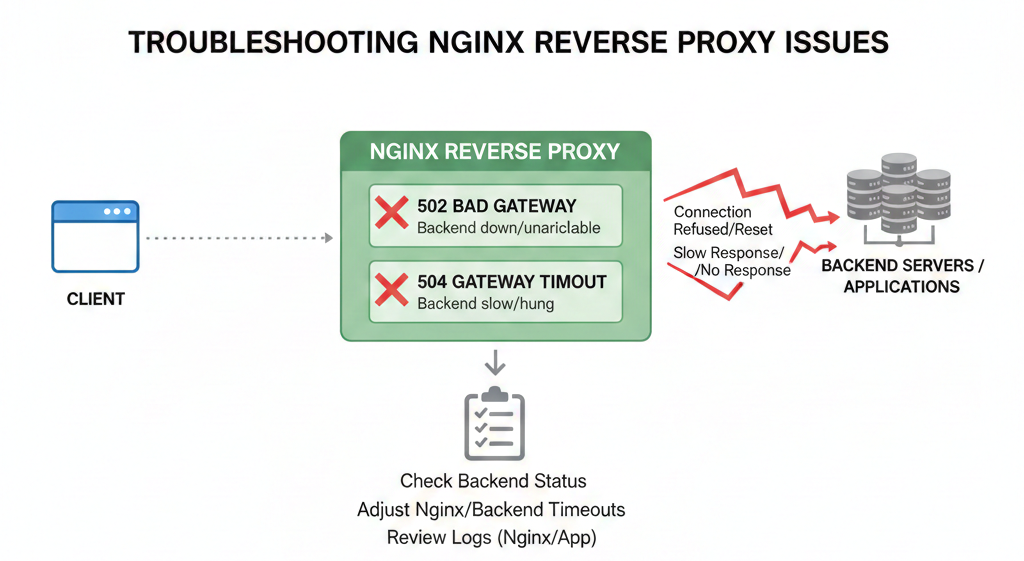
A. 502 Bad Gateway
This is the most common error with reverse proxies. It means Nginx successfully received the request from the client but could not get a valid response from the backend server.
Common causes and fixes:
- Backend application is not running — Start your backend service and verify it is listening on the correct port with:
ss -tlnp | grep 3000. - Wrong proxy_pass address — Double-check the host and port in your proxy_pass directive.
- Firewall blocking local ports — Ensure UFW or iptables is not blocking internal connections.
B. 504 Gateway Timeout
A 504 error means the backend server took too long to respond. Fix this by increasing the proxy timeout values:
proxy_read_timeout 300s;
proxy_connect_timeout 300s;
proxy_send_timeout 300s;
C. Permission Denied Errors
If you see permission errors in the Nginx error log, it may be due to SELinux or file permission issues. Check the Nginx error log:
sudo tail -f /var/log/nginx/error.logD. Nginx Not Forwarding Headers
If your backend application is not receiving the correct client IP, ensure your proxy headers are correctly configured and that your application is reading the right header (X-Real-IP or X-Forwarded-For).
12. Best Practices for Nginx Reverse Proxy Configuration
- Always test before reloading — Run
sudo nginx -tbefore every nginx reload to catch configuration errors. - Use strong SSL/TLS — Let Certbot manage your certificates and ensure TLSv1.2 and TLSv1.3 are enabled.
- Limit exposed ports — Only expose ports 80 and 443 publicly. Keep backend ports restricted to localhost.
- Set proper timeouts — Configure
proxy_read_timeoutandproxy_connect_timeoutbased on your application’s expected response times. - Enable Gzip compression — Add
gzip on;andgzip_types text/plain application/json application/javascript text/css;in yournginx.confcode to reduce bandwidth. - Monitor access and error logs — Regularly review
/var/log/nginx/access.logand/var/log/nginx/error.logfor issues. - Use rate limiting — Protect your backend with rate limiting using
limit_req_zoneto prevent abuse and DDoS attacks. - Keep Nginx updated — Regularly run
sudo apt update && sudo apt upgrade nginxto stay on the latest stable version.
13. Conclusion
Congratulations! You have successfully configured Nginx as a reverse proxy on Ubuntu. Throughout this guide, you have covered everything from the basics of what a reverse proxy is to advanced topics like load balancing, SSL configuration, and caching.
Here is a quick summary of what you accomplished:
- Installed and configured Nginx on Ubuntu.
- Created a server block to proxy requests to a backend application.
- Configured proxy headers to pass client information to the backend.
- Secured the reverse proxy with free SSL/TLS certificates from Let’s Encrypt.
- Set up optional load balancing across multiple backend instances.
- Enabled proxy caching to improve performance.
- Learned how to troubleshoot common issues.
Nginx is a powerful and flexible tool that forms the backbone of many production web architectures. As your next steps, consider exploring Docker and Nginx together, using Nginx as a Kubernetes Ingress controller, or exploring Nginx Plus for enterprise-grade features.
14. Frequently Asked Questions (FAQs)
What is the difference between Nginx and Apache as a reverse proxy?
Both Nginx and Apache can serve as reverse proxies, but Nginx is generally preferred for this role due to its event-driven architecture, lower memory usage under high concurrency, and simpler configuration syntax. Apache uses a thread-based model, which consumes more resources under heavy load.
Can Nginx act as both a web server and a reverse proxy?
Yes. Nginx can serve static files directly (acting as a web server) while simultaneously proxying dynamic requests to a backend application server. This is a very common pattern — Nginx handles static assets efficiently while forwarding API and dynamic requests to Node.js, Python, or other backend services.
How do I test if my Nginx reverse proxy is working?
You can test using curl from the command line: curl -I http://your-domain.com. Check the response headers — you should see responses coming from your backend application. You can also add a custom header in Nginx and verify it appears in the response. For a quick functional test, simply open your domain in a browser and confirm your application loads.
Is Nginx reverse proxy free to use?
Yes, the open-source version of Nginx (nginx.org) is completely free and includes all the reverse proxy, load balancing, and caching features covered in this guide. Nginx Plus (nginx.com) is a commercial version that adds advanced features like active health checks, JWT authentication, and an API dashboard.
Can I use Nginx reverse proxy with Docker?
Absolutely. Nginx is frequently used as a reverse proxy in Docker environments. You can run Nginx in a Docker container and proxy requests to other containers using Docker’s internal DNS for container names. Tools like nginx-proxy and Traefik automate this pattern, but a manually configured Nginx container gives you the most control.
Leave a Reply