



1. What is Node.js?
Node.js lets you use JavaScript to build the “brain” of a website (the server). Usually, JavaScript only works inside a web browser, but Node.js brings it to your computer and servers to run Node.js apps. It is now the most popular tool for building web apps.
A. Why is it better than older tools?
Older systems (like PHP) are like a restaurant that hires a new waiter for every single customer. Each waiter takes up space and energy. If 500 people show up, the restaurant gets crowded and crashes.
Node.js is different. It uses one very fast system to handle everyone at once.
- It saves money: You don’t need giant, expensive servers.
- It stays fast: Your site won’t slow down when lots of people visit at once.
- It’s reliable: It handles traffic spikes without crashing.
B. How does it actually work?
The secret to Node.js is that it is “non-blocking.” In most systems, if the computer is loading a large file, it stops everything else and waits. Node.js doesn’t wait. It starts loading the file and immediately moves on to the next task. When the file is ready, it sends a notification and finishes the job.
This “event-driven” style means:
- The server is always moving.
- It uses very little memory.
- It avoids common errors, like two programs fighting over the same file.
C. Why developers love it
Node.js is built for scale. Whether you are working on it every day or just starting, its main goal is efficiency. It allows you to build powerful, fast apps that can grow with your business without breaking the bank.
2. What is a Container?
Imagine you are moving to a new house. Instead of throwing your clothes, dishes, and books loosely into a truck, you put them into a sturdy shipping container.
This container holds everything your items need to stay safe. It doesn’t matter if the container is put on a ship, a train, or a truck—the inside stays the same.
In software, a container does the same thing. It packs your code, your settings, and your tools into one neat package. This package will run perfectly on any computer, whether it’s your laptop or a giant cloud server.
A. Why Use Docker?
If you’ve ever said, “But it works on my machine!” after your code failed on a friend’s computer, you need Docker.
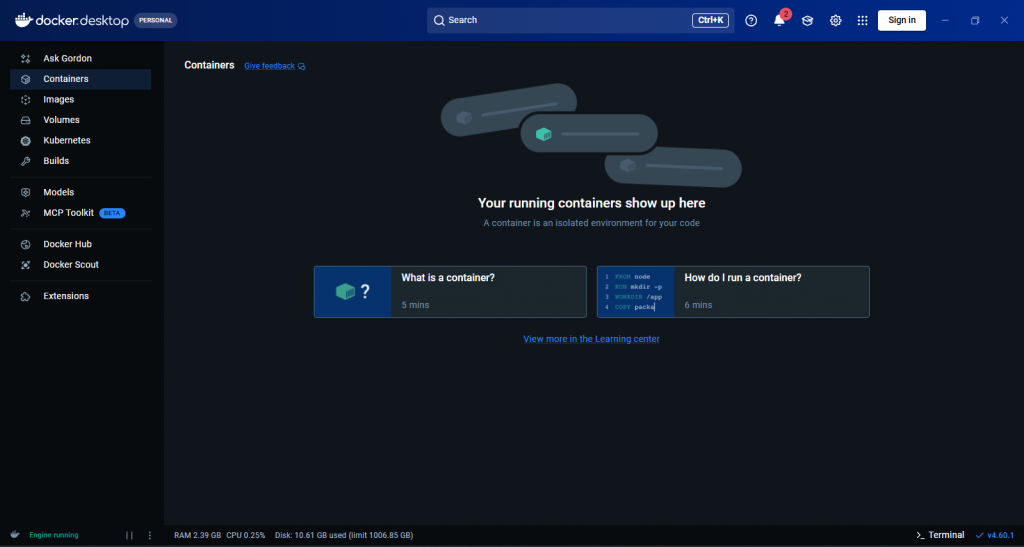
Usually, apps break because one computer has a different version of Node.js or a different setting than another. Docker fixes this. It creates a “bubble” around your app. Inside that bubble, the environment is always the same.
With Docker:
- No more setup drama: You don’t have to worry about different operating systems.
- Consistency: If it works on your laptop, it will work on the server.
- Speed: You can start, stop, and move your app in seconds.
B. The Goal of This Guide
By the end of this article, you won’t just have code sitting in a folder. You will have a professional, containerized application running live. You’ll learn how to “box up” your Node.js app and send it out into the world, where anyone can use it.
3. What You Need to Get Started
Before we jump in, make sure you have a few things ready. Don’t worry—you don’t need to be a genius to follow along.
A. Basic Skills
You should know the basics of JavaScript and how Node.js works. If you’ve built a simple “Hello World” app or a basic API before, you’re ready.
B. Tools to Install
You will need three main things on your computer:
- Node.js: This is what runs your code. Most developers use the “LTS” version because it is the most stable.
- Docker Desktop: This is the software that actually creates and runs your containers. It works on Windows, Mac, and Linux.
- A Docker Hub Account: Think of this like “GitHub for containers.” It’s a free place where you can store your container images so you can use them later on a server.
Step 1: How To Prepare Your Node.js App
Before we box up our app, we need an app that actually works! We’ll start with a very simple “Hello World” server using Express.
A. Create Your Code
Create a new folder and a file named “index.js“. Inside, paste this simple code:
const express = require('express');
const app = express();
const port = process.env.PORT || 3000;

app.get('/', (req, res) => {
  res.send('Hello, Docker World!');
});

app.listen(port, () => {
  console.log(`App listening at http://localhost:${port}`);
});
B. Why the package.json Matters
Think of the package.json file as the ID card for your project. It tells Docker exactly which tools (like Express) it needs to download to make your app run.
You also need a start script. This is a simple command inside your package.json that tells Docker, “Hey, run this file to start the website.” Without it, Docker won’t know how to turn your app on.
C. Using Environment Variables
In the code above, you’ll notice process.env.PORT. This is a big deal for containers.
Instead of forcing your app to always use port 3000, this allows the server (the cloud) to tell your app which port to use. It makes your app flexible. If the cloud says, “Use port 8080,” your app will listen and work perfectly.
Step 2: How to Write the Dockerfile
Now that our app is ready, we need to create a “recipe,” so Docker knows how to build it. We do this using a file named Dockerfile (with no file extension).
Think of the Dockerfile as a set of instructions for a chef. It tells Docker which ingredients to get and how to cook them.
A. Create the Dockerfile
In your project folder, create a file named Dockerfile and paste this in:
# 1. Use a small version of Node.js
FROM node:20-alpine

# 2. Create a folder for our app inside the container
WORKDIR /app

# 3. Copy the "ID cards" first
COPY package*.json ./

# 4. Install the tools
RUN npm install

# 5. Copy the rest of the code
COPY . .

# 6. Start the app
CMD ["npm", "start"]
B. Why use “Alpine”?
You’ll notice we used node:20-alpine. In the Docker world, Alpine means “extra small.” It removes all the extra files you don’t need, making your container faster to download and safer from hackers.
C. Don’t forget the .dockerignore
Just like a .gitignore file, a .dockerignore file tells Docker which files to stay away from. You should always add node_modules to this file.
Why? Because we want Docker to install its own fresh version of your tools inside the container, rather than copying the messy ones from your laptop.
Step 3: Building and Testing Locally
Now it’s time to turn your “recipe” (the Dockerfile) into an actual “meal” (the Container Image). We will do this using two simple commands in your terminal.
A. Build the Image
Open your terminal in your project folder and type:
docker build -t my-node-app .- The
-tstands for “tag.” It’s just a nickname, so you can find your app later. - The dot
.at the end is very important. It tells Docker to look for the Dockerfile in your current folder.
B. Run the Container
Once the build finishes, you can start your app with this command:
docker run -p 3000:3000 my-node-app- The
-p 3000:3000is like a bridge. It connects port 3000 on your computer to port 3000 inside the Docker “bubble.”
C. Check if it works
Open your web browser and go to http://localhost:3000. If you see “Hello, Docker World!”, congratulations! Your app is officially running inside a container.
D. Why this is a win
Even if you deleted Node.js from your computer right now, the app would still work. That’s because everything it needs is trapped inside that Docker image.
Step 4: Pushing to a Registry
Now that your container works on your laptop, you need to put it somewhere the rest of the world can see it. This is where Docker Hub comes in. Think of it like a “cloud storage” for your containers.
A. Log In
Open your terminal and sign in to your Docker Hub account:
docker loginB. Give Your Image a New Name
To push an image to the cloud, it needs to include your Docker Hub username. Use this command to “rename” (or tag) your image:
docker tag my-node-app yourusername/my-node-app(Replace yourusername with your actual Docker Hub name!)
C. Push It!
Now, send your image up to the cloud:
docker push yourusername/my-node-appD. Why we do this
Once your image is on Docker Hub, it is officially “portable.” You can go to any server in the world, type one command, and your app will start running the same way it did on your computer.
Step 5: Deploying to the Cloud
Now for the best part: making your app live so anyone with a link can visit it. You have many choices, but we will focus on the easiest ways to get your container online.
Option A: The Easy Way (Render or Railway)
Services like Render or Railway are perfect for beginners.
- You simply connect your GitHub account or point them to your Docker Hub image.
- They see your Dockerfile, build the container for you, and give you a live URL (like
my-app.render.com). - Why use this? It’s almost zero effort and often has a free tier.
Option B: The Modern Way (Google Cloud Run or AWS App Runner)
If you want something more professional, use “Serverless” container tools like Google Cloud Run.
- You give them your Docker image, and they run it only when someone visits your site.
- If no one is visiting, the server “sleeps,” so you don’t pay anything.
- If a million people visit, it automatically makes copies of your container to handle the traffic.
Option C: The Manual Way (VPS)
You can rent a simple Linux VPS server, install Docker, and run your docker run command there. This gives you total control, but you have to manage the security and updates yourself.
Leave a Reply