Quick answer: To host a FiveM server on a VPS, choose Windows or Linux, install the current recommended Cfx.re server artifact, register a server key in the Cfx Portal, configure the server, allow its game port, and test a connection from a separate FiveM client. Windows has the guided txAdmin recipe. Linux also supports a manual FXServer setup. This guide covers both paths without assuming a particular VPS plan or player capacity.
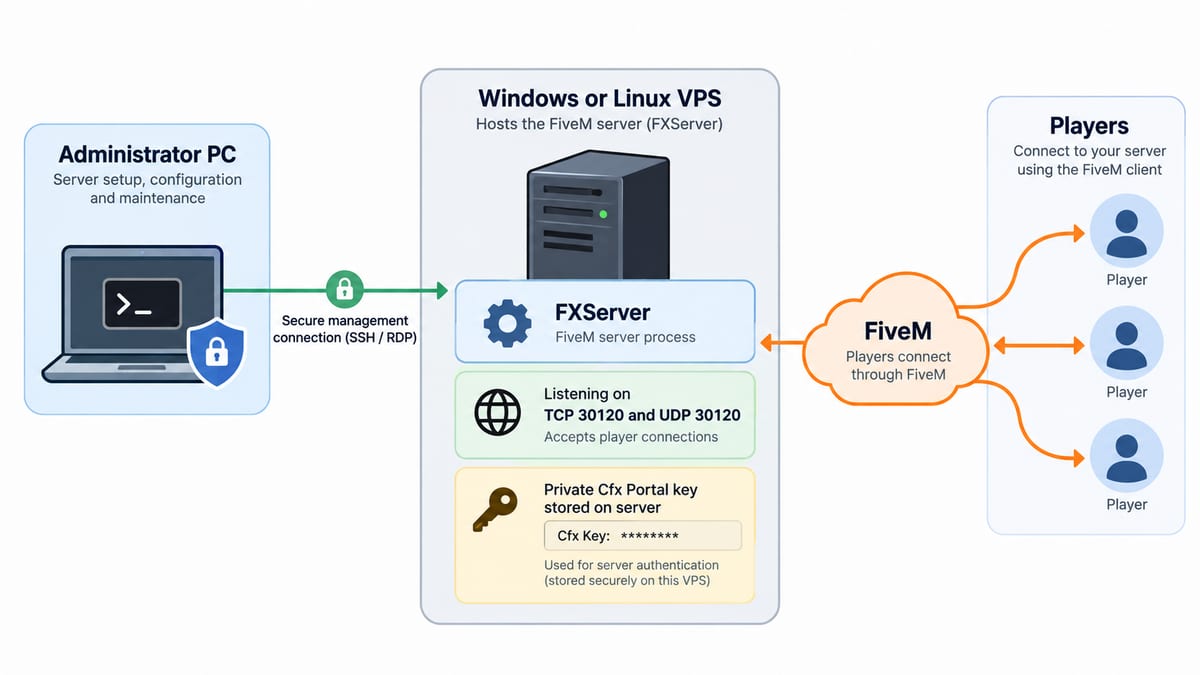
FiveM is the client platform; FXServer is the server software. A VPS gives you control over the operating system, firewall, files and restarts. It also makes you responsible for updates, backups and access control. If you are choosing a VPS, compare Windows VPS plans and Linux VPS plans against your intended scripts, player load and administrator experience. Do not use FiveM's client system requirements as a server sizing promise.
Before you start
- A Windows or Linux VPS with administrator access and enough resources for your intended server and scripts. Start with the Cfx.re default recipe, then measure actual CPU, memory and disk use before adding resources or increasing capacity.
- A Cfx account and a server registration key from the Cfx Portal. Keep the key private; never paste it into a public repository or screenshot.
- The official Cfx.re setup guide and the current recommended artifact from its Server Download page. Artifact names may differ for GTA V Enhanced, so follow the label on the download page.
- A separate Windows PC with GTA V and the FiveM client for the connection test. Installing the client on the VPS is not part of hosting the server.
Option A: set up FiveM on a Windows VPS with txAdmin
- Use Remote Desktop to sign in to your Windows VPS. Download the recommended Windows server artifact from the official Cfx.re Server Download page and extract it to a folder such as
C:\FXServer\server. The standard executable isFXServer.exe; the GTA V Enhanced build may usecfx-server.exe. - Start the server executable without a
+execargument. This launches txAdmin's setup flow. Open the local txAdmin address shown in the server console from the VPS browser; its usual port is 40120. Use the displayed PIN, link your Cfx account, and set an admin password. - Name the server, select Popular Recipes, then choose the CFX Default FiveM template. Enter the registration key generated in the Cfx Portal when the recipe asks for it. Review the generated configuration and choose Save & Run Server.
- Allow the game server's configured TCP and UDP port through Windows Defender Firewall and any VPS provider firewall. The default Cfx.re example uses port 30120 for both protocols. Restrict txAdmin's management port to administrators; it is not a player connection port.
- From a separate FiveM client, connect using the VPS public IP and configured game port. Check the FXServer console and txAdmin for a successful connection before adding scripts.
These steps follow the Cfx.re txAdmin setup. If the downloaded build uses a different executable name or the setup screens change, use the current instructions on that page.
Option B: set up a vanilla FXServer on a Linux VPS
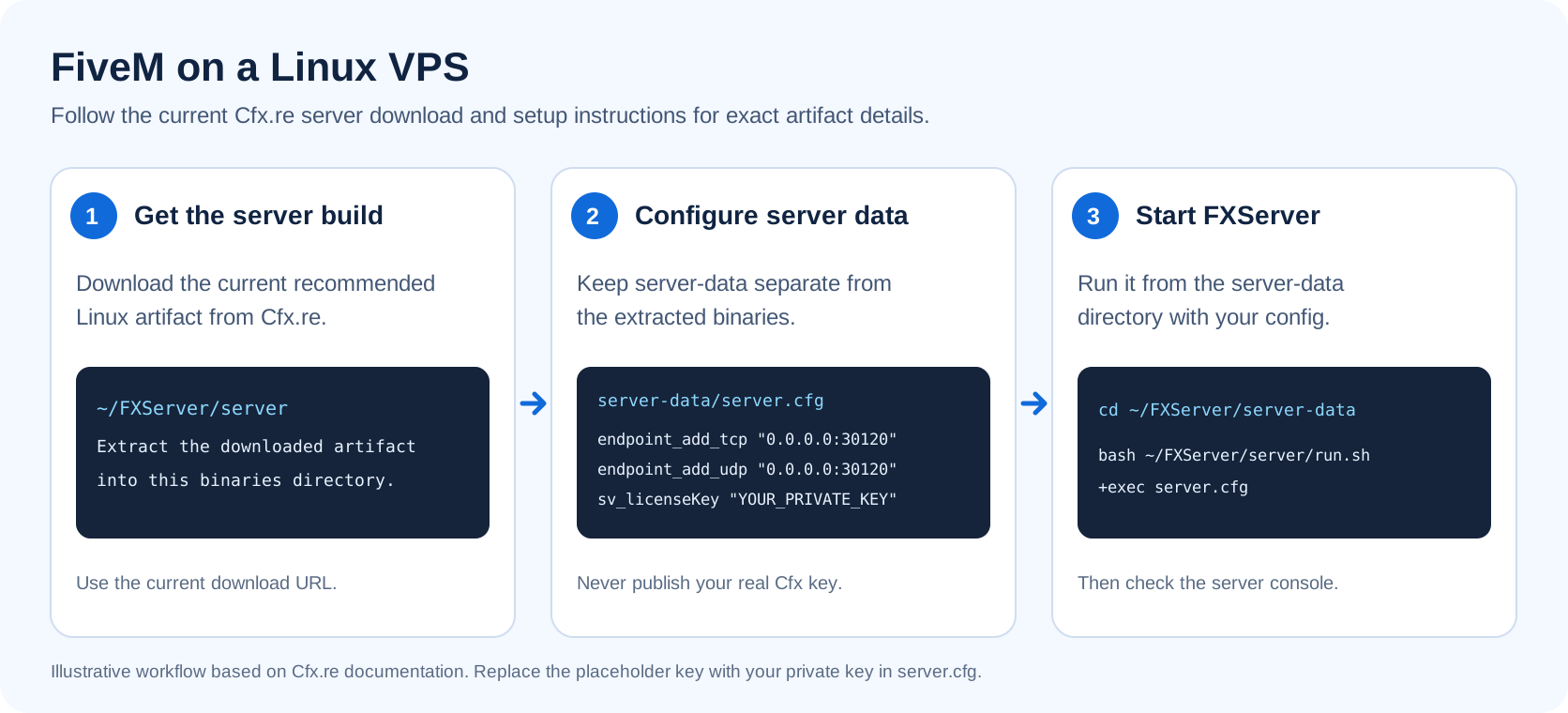
The official Linux build is available, but Cfx.re describes it as a courtesy port because Linux distribution compatibility and diagnostic tooling can vary. If your scripts require Windows-specific dependencies, check them before choosing Linux. On a Debian or Ubuntu VPS, install Git and xz-utils if missing, then use the recommended Linux artifact from the Cfx.re download page.
mkdir -p ~/FXServer/server
# Download the current recommended Linux artifact from the official Cfx.re page.
# Place the downloaded archive at ~/FXServer/server/fx.tar.xz.
cd ~/FXServer/server
tar -xf fx.tar.xz
git clone https://github.com/citizenfx/cfx-server-data.git ~/FXServer/server-data
The archive name above is for the standard build. For GTA V Enhanced, Cfx.re currently labels the Linux artifact differently; use the downloaded file's actual name. Keep the server-data directory separate from the binaries, as the official Linux instructions show.
Create ~/FXServer/server-data/server.cfg using Cfx.re's example as a starting point. At minimum, set the listening endpoints, a project name, and your own registration key; keep the default resource entries from the official example:
endpoint_add_tcp "0.0.0.0:30120"
endpoint_add_udp "0.0.0.0:30120"
sv_hostname "My FiveM Server"
sets sv_projectName "My FiveM Server"
sv_licenseKey "YOUR_PRIVATE_CFX_PORTAL_KEY"
ensure mapmanager
ensure chat
ensure spawnmanager
ensure sessionmanager
ensure basic-gamemode
ensure hardcap
Replace the placeholder locally and protect the configuration file. Start from the data directory so FXServer can find its resources and configuration:
cd ~/FXServer/server-data
bash ~/FXServer/server/run.sh +exec server.cfg
Allow TCP and UDP 30120, or the port you chose, in both the VPS firewall and any provider firewall. On Ubuntu with UFW, allow the game port only after confirming SSH access is permitted; do not blindly enable a firewall that could lock you out. For a persistent server, arrange a service manager and backups after the first successful test.
Verify the server and fix common setup errors
- Server does not start: check that you extracted the artifact for the correct operating system and launched the correct executable or
run.sh. On Linux, verifyxz-utilsis installed if archive extraction fails. - No resources found: start FXServer from
server-data. Cfx.re identifies the wrong working directory as a common cause. - No license key specified: confirm your own key is in
server.cfg, the file is being executed, and the key has not been exposed publicly. Do not reuse someone else's key. - Connection times out: confirm FXServer is running, the configured endpoint matches the public port, and both host and provider firewalls permit TCP and UDP traffic on that port. Test from a different network rather than relying only on the VPS itself.
- New scripts break the server: return to the default recipe, add one resource at a time, and inspect the server console. Back up the data directory before updates.
Cfx.re documents the working-directory and +exec mistakes in its common issues section. The official server issues guide is the next place to check if the default setup still fails.
Which VPS should you choose?
Choose Windows if you want the documented guided txAdmin setup through Remote Desktop or need Windows-only tools. Choose Linux if you are comfortable managing files, permissions and services from a shell. Cfx.re notes that its Linux port may be harder to diagnose. There is no universal RAM or CPU number that guarantees a particular player count: scripts, assets, database choices and traffic change the load. Test with the default server first and size from measured use.
For another example of operating a modded game community, see our Minecraft VPS hosting page. For a broader comparison of games that can run on dedicated servers, read our hosted-games guide. Those are different games; their software requirements are not FiveM requirements.
Frequently asked questions
Can I host a FiveM server on either a Windows or Linux VPS?
Yes. Cfx.re documents a guided txAdmin setup and manual FXServer installation for Windows and Linux. Choose the operating system you can maintain, then use the current server artifact for that system.
Do I need a Cfx.re server key?
Yes. Register your own server key through the Cfx Portal. For a manual setup, place it in server-data/server.cfg with sv_licenseKey, as shown in the official configuration guide. Keep the real key private.
Which port should I open for players?
The Cfx.re example configuration uses port 30120 for both TCP and UDP. Allow the port configured in your server.cfg through the VPS firewall and any provider firewall. If you change the configured port, update the firewall rules to match.
Why does FXServer start but players still cannot connect?
Check that the server is running, the configured endpoint and firewall rules match, and you are testing from a separate network. For a manual installation, run FXServer from the server-data directory with +exec server.cfg; Cfx.re lists a wrong working directory or missing +exec among common setup errors.