



1. Introduction
If you’ve ever wanted to automate repetitive tasks — like syncing data between apps, sending notifications, processing forms, or orchestrating complex business workflows — n8n is one of the most powerful tools available today. It’s an open-source, node-based workflow automation platform that gives you full control over your data and integrations.
Unlike SaaS-only automation tools such as Zapier or Make, n8n allows you to self-host the entire platform on your own server or local machine — and set up n8n in a way that fits your needs. This means your data stays within your infrastructure, you avoid per-task pricing, and you can customize everything to your heart’s content.
A. What is n8n?
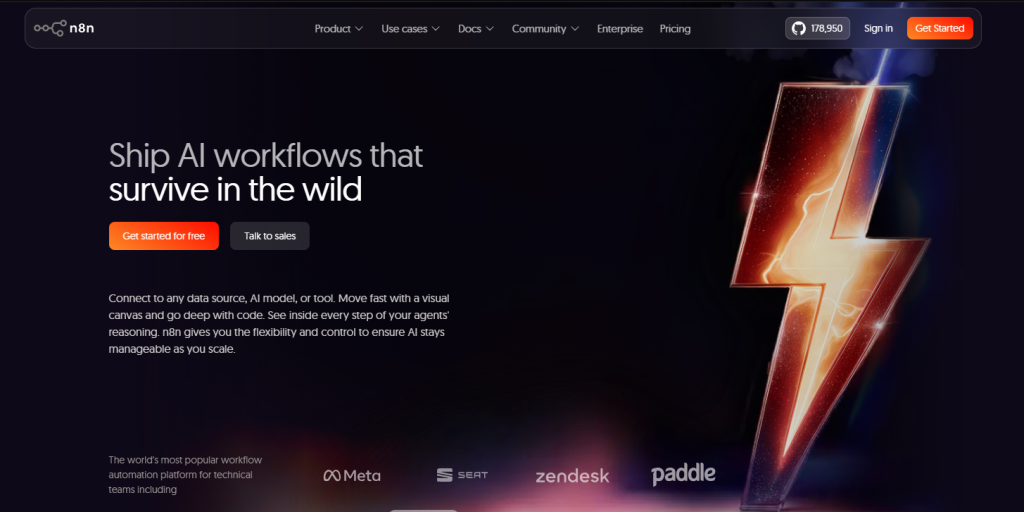
n8n (pronounced “n-eight-n“) is a fair-code licensed workflow automation tool with a visual, drag-and-drop interface. It supports over 400+ integrations — from Google Sheets and Slack to databases, APIs, and custom webhooks — and allows you to build complex automations without writing much code.
B. Self-Hosted vs. n8n Cloud
- Self-Hosted: You install and run n8n on your own server or machine. Full control, no usage limits, but you manage updates and infrastructure.
- n8n Cloud: Managed by n8n’s team. Easy to get started, but subject to pricing tiers and data leaving your servers.
This guide focuses entirely on self-hosting, which is the preferred option for developers, DevOps teams, and privacy-conscious users.
2. Prerequisites to Set Up n8n
Before diving into installation, make sure you have the following in place:
A. Basic Knowledge
- Comfort with terminal / command-line interfaces.
- Basic understanding of how servers and ports work.
- Familiarity with environment variables (helpful but not required).
B. Server or Local Machine Requirements
- OS: Ubuntu 20.04+, Debian, macOS, or Windows (via WSL2).
- RAM: Minimum 1 GB (2 GB recommended for production).
- CPU: 1 vCPU minimum (2+ vCPUs recommended).
- Storage: At least 10 GB free disk space.
C. Optional but Recommended
- A domain name pointing to your server (for remote access and HTTPS).
- A VPS from providers like VPS Malaysia, Hostinger, DigitalOcean, Hetzner, Linode, or AWS.
D. Required Software
- Node.js v18+ (for
npmmethod). - Docker and Docker Compose (for
Dockermethod). - Git (optional, useful for managing configurations).
3. Choosing Your Deployment Method
n8n can be deployed in several ways. The right method depends on your use case, technical comfort level, and environment. Here’s an overview of the three primary methods:
Option A: npm (Quickest for Local Testing)
Installing n8n via npm is the fastest way to get started. It requires only Node.js and is ideal for trying n8n locally before committing to a full server setup.
Option B: Docker (Recommended for Production)
Running n8n as a Docker container isolates it from your host system, ensures consistent behavior across environments, and makes updates easy. This is the most popular method for production.
Option C: Docker Compose (Best for Long-Term Self-Hosting)
Docker Compose lets you define and manage multi-container setups. This is ideal when you want to run n8n alongside a PostgreSQL database, a reverse proxy, and other services — all with a single configuration file.
The table below summarizes the trade-offs:
| Feature | npm | Docker |
|---|---|---|
| n8n Setup Speed | Very Fast | Fast |
| Best For | Local Testing | Production |
| Persistence | Limited | Volume-based |
| Scalability | Low | High |
| Recommended | Beginners | Production Use |
💡 Note: For most users planning to run n8n in production, Docker or Docker Compose is the recommended approach.
4. Installation — Method A: Using npm
This method is best for local development and quick testing. It requires Node.js to be installed on your system.
Step 1: Install Node.js
Download and install Node.js v18 or higher from https://nodejs.org. Verify the installation:
node --version

npm --version
Step 2: Install n8n Globally
Run the following command to install n8n as a global npm package:
npm install -g n8nThis will download and install n8n along with all required dependencies.
Step 3: Start n8n
Once installed, start n8n with:
n8n startn8n will initialize and display startup logs. By default, it listens on port 5678.
Step 4: Access the Dashboard
Open your browser and navigate to: http://localhost:5678.
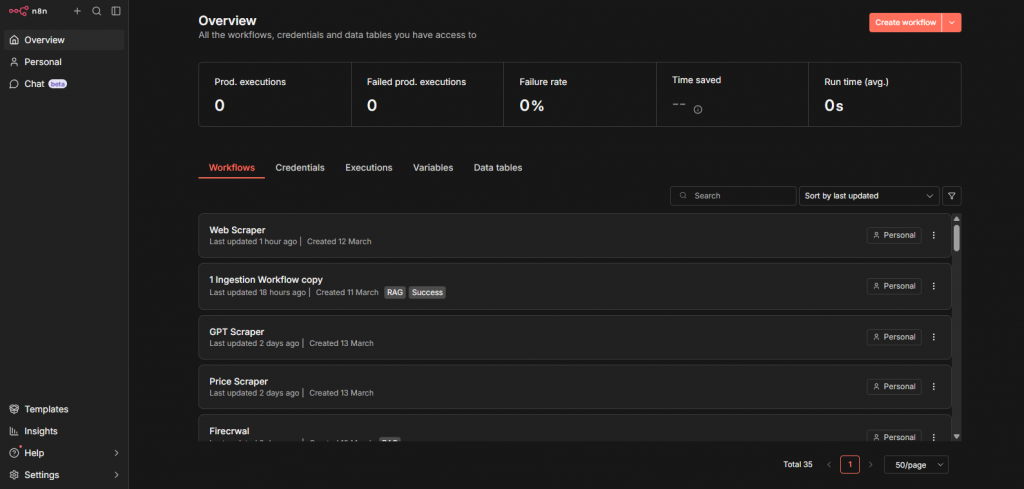
You’ll be greeted by the n8n setup wizard, where you can create your first owner account.
💡 Note: Data is stored in SQLite by default (~/.n8n directory). This is fine for testing, but not recommended for production.
5. Installation — Method B: Using Docker
Docker provides a clean, isolated environment for running n8n. Make sure Docker is installed on your system before proceeding.
Step 1: Pull the Official n8n Image
docker pull n8nio/n8nStep 2: Run the Container
Run n8n with a mounted volume for persistent data:
docker run -it --rm \
  --name n8n \
  -p 5678:5678 \
  -v ~/.n8n:/home/node/.n8n \
  n8nio/n8n
Breaking this down:
-p 5678:5678— maps the container port to your host machine.-v ~/.n8n:/home/node/.n8n— persists n8n data to your local filesystem.--rm— removes the container when it stops (use without this flag for persistence).
Step 3: Verify It’s Running
Check that the container is active:
docker psYou should see the n8n container listed. Open http://localhost:5678 to access the UI.
6. Installation — Method C: Docker Compose (Recommended)
Docker Compose is the most robust way to self-host n8n. It allows you to define your entire setup in a single YAML file, making it easy to replicate, update, and manage.
Step 1: Create the docker-compose.yml File
Create a new directory for your n8n setup and add a docker-compose.yml file:
mkdir n8n-setup && cd n8n-setup
nano docker-compose.yml
Paste the following configuration:
version: '3.8'
services:
  n8n:
    image: n8nio/n8n
    restart: unless-stopped
    ports:
      - "5678:5678"
    environment:
      - N8N_HOST=your-domain.com
      - N8N_PORT=5678
      - N8N_PROTOCOL=https
      - WEBHOOK_URL=https://your-domain.com/
      - DB_TYPE=postgresdb
      - DB_POSTGRESDB_DATABASE=n8n
      - DB_POSTGRESDB_HOST=postgres
      - DB_POSTGRESDB_USER=n8n
      - DB_POSTGRESDB_PASSWORD=your_password
    volumes:
      - n8n_data:/home/node/.n8n
    depends_on:
      - postgres

  postgres:
    image: postgres:15
    restart: unless-stopped
    environment:
    - POSTGRES_DB=n8n
      - POSTGRES_USER=n8n
      - POSTGRES_PASSWORD=your_password
    volumes:
      - postgres_data:/var/lib/postgresql/data

volumes:
  n8n_data:
  postgres_data:
Step 2: Start All Services
docker compose up -dThe -d flag runs the services in detached (background) mode. Docker will pull the necessary images and start both n8n and PostgreSQL.
Step 3: Verify
docker compose psBoth the n8n and PostgreSQL services should be running.
7. Configuring n8n for Production
Running n8n on a public server requires a few additional steps to make it secure and accessible.
A. Setting Up a Reverse Proxy with Nginx
A reverse proxy sits in front of n8n and handles HTTPS. Here’s a basic Nginx server block:
server {
    server_name your-domain.com;
    location / {
        proxy_pass http://localhost:5678;
        proxy_http_version 1.1;
        proxy_set_header Upgrade $http_upgrade;
        proxy_set_header Connection 'upgrade';
        proxy_set_header Host $host;
        proxy_cache_bypass $http_upgrade;
    }
}
B. Enabling HTTPS with Let’s Encrypt
Install Certbot and obtain a free SSL certificate:
sudo apt install certbot python3-certbot-nginx

sudo certbot --nginx -d your-domain.com
Certbot will automatically configure HTTPS in your Nginx config and set up auto-renewal.
C. Key Environment Variables
- N8N_HOST — your domain name.
- N8N_PROTOCOL — set to https for production.
- WEBHOOK_URL — full URL including https://.
- N8N_BASIC_AUTH_ACTIVE=true — enables basic auth.
- N8N_BASIC_AUTH_USER and N8N_BASIC_AUTH_PASSWORD — credentials.
- N8N_ENCRYPTION_KEY — a random secret to encrypt stored credentials.
8. Connecting to a Database
By default, n8n uses SQLite, which is fine for local testing but not suitable for production use. SQLite doesn’t handle concurrent access well, and backups are trickier.
A. Why PostgreSQL?
- Better performance under concurrent load.
- Easier to back up with standard tools (pg_dump).
- Required for multi-user or team setups.
- More reliable for long-running production instances.
B. Configuring n8n to Use PostgreSQL
Add these environment variables to your n8n service:
DB_TYPE=postgresdb
DB_POSTGRESDB_HOST=postgres
DB_POSTGRESDB_PORT=5432
DB_POSTGRESDB_DATABASE=n8n
DB_POSTGRESDB_USER=n8n
DB_POSTGRESDB_PASSWORD=your_secure_password
C. Running Migrations
n8n automatically runs database migrations on startup. No manual SQL scripts are required — simply start n8n and it will create all necessary tables.
9. Setting Up Your First Workflow
Now that n8n is running, let’s build a simple workflow to see how everything fits together.
Step 1: Navigate to the Workflow Editor
Log in to your n8n instance and click the ‘+ New Workflow‘ button in the top-right corner.
Step 2: Add a Trigger Node
Every workflow starts with a trigger. Click the ‘+‘ button to open the node panel and search for one of these popular triggers:
- Schedule Trigger — runs your workflow at set intervals (e.g., every hour).
- Webhook — fires when an external service sends an HTTP request.
- Manual Trigger — lets you run the workflow on demand for testing.
Step 3: Connect Action Nodes
Add action nodes to perform tasks. For example:
- HTTP Request — call any REST API.
- Gmail — send or read emails.
- Slack — send messages to channels.
- Google Sheets — read or write spreadsheet data.
- Code — run custom JavaScript or Python.
Drag a line from the output of your trigger to the input of the action node to connect them.
Step 4: Test and Activate
Click ‘Execute Workflow’ to test your workflow manually. Once you’re satisfied, toggle the Active switch in the top-right to enable it. n8n will now run the workflow automatically based on your trigger conditions.
10. Keeping n8n Running (Process Management)
For n8n to serve you reliably, it needs to stay running even after crashes or server reboots.
A. For npm Installs: Using PM2
npm install -g pm2
pm2 start n8n
pm2 save
pm2 startup
PM2 will automatically restart n8n if it crashes and launch it on server boot.
B. For Docker: Restart Policy
In your docker-compose.yml or Docker run command, set the restart policy:
restart: unless-stoppedThis ensures n8n restarts automatically after crashes or reboots (unless you manually stop it).
C. For systemd (Linux Servers)
Create a systemd service file at /etc/systemd/system/n8n.service to manage n8n as a system service. Use systemctl enable n8n and systemctl start n8n to activate it.
11. Conclusion
Congratulations! You now have a fully self-hosted n8n instance up and running. Let’s recap what you’ve accomplished:
- Choose the right deployment method for your needs (npm, Docker, or Docker Compose).
- Installed and configured n8n on your server or local machine.
- Set up HTTPS with a reverse proxy for production security.
- Connected n8n to PostgreSQL for reliable data storage.
- Built and activated your first automated workflow.
- Configured process management to keep n8n running 24/7.
A. What’s Next?
Now that the foundation is in place, here’s what you can explore:
- Browse the n8n template library for pre-built workflows at n8n.io/workflows.
- Explore the 400+ built-in integrations in the node panel.
- Set up sub-workflows to modularize complex automations.
- Configure multi-user access for your team.
- Join the n8n community forum at community.n8n.io to share workflows and get help.
Leave a Reply