



1. What is a Hypervisor?
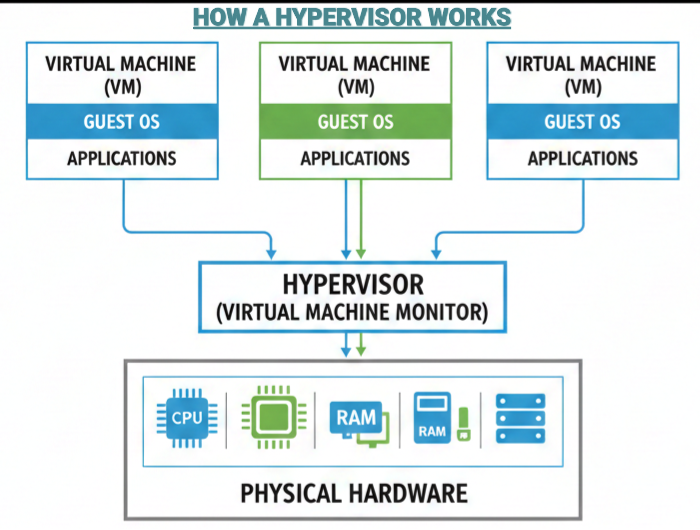
A hypervisor, also known as a Virtual Machine Monitor (VMM), is a special kind of software that acts like a traffic cop for your computer. It allows you to run multiple “virtual” computers (Virtual Machines) on just one piece of physical hardware.
Think of it as the boss of the computer. It takes the physical parts—like the CPU, memory, and storage—and divides them up so that different operating systems (like Windows and Linux) can all work at the same time without crashing into each other.
A. Why Do We Need Them?
- Efficiency: Instead of using one big server for one small task, you can use it to run ten different tasks at once.
- Isolation: If one virtual machine gets a virus or crashes, the others keep working perfectly. It’s like having separate rooms in a house; a fire in the kitchen doesn’t have to ruin the bedroom.
- Flexibility: It lets you run old software and new software on the same machine without any conflict.
Both KVM and Hyper-V are “Type-1” hypervisors. This means they run directly on your computer’s hardware. This makes them much faster and more reliable than “Type-2” hypervisors, which run on top of an existing desktop system like a regular app.
2. What Is KVM?
KVM stands for Kernel-based Virtual Machine. It is a free, open-source tool built directly into Linux.
Think of KVM as a way to turn your Linux computer into a “manager” (called a hypervisor). This manager lets you run several different computers, or Virtual Machines (VMs), all at the same time on one single piece of hardware. Each of these VMs stays separate from the others, so they don’t interfere with each other.

A. A Quick History
- 2006: KVM was first introduced to the world.
- 2007: It became a permanent part of the Linux system.
- Today: Because it is so reliable, big names like Red Hat use KVM to power their professional tools.
B. Benefits of KVM?
KVM is a popular choice for many businesses because it is fast, free, and secure. Here are the main benefits:
- Top Performance: Since KVM is built into Linux, it talks directly to your hardware. This makes your virtual machines run almost as fast as a real physical computer.
- It’s Free: KVM is open-source. This means you don’t have to pay expensive licensing fees just to use the software.
- Excellent Security: It uses high-level Linux security tools (like SELinux). This keeps your virtual machines isolated so they don’t leak data to each other.
- Works with Everything: You can run almost any operating system on KVM, and it works on many different types of hardware.
- Easy to Grow: If your project gets bigger, KVM makes it simple to add more power, like extra CPU or memory, to your virtual machines.
- No Downtime: You can move a running virtual machine from one physical server to another without turning it off. This is called “Live Migration.”
Pro Tip: Get the Most Out of KVM. To truly unlock the power of KVM, you need a server with full “root” access. A high-performance Linux VPS or Dedicated Server gives you the control you need to manage your virtual machines without any restrictions.
Explore High-Speed Linux KVM VPS Hosting →
C. Challenges of Using KVM
While KVM is powerful, it does have some downsides, especially for beginners. Here is what to watch out for:
- Uses More Code than Buttons: KVM is mostly managed through a Command-Line Interface (CLI). Instead of clicking icons, you often have to type in commands. This can be tricky if you aren’t used to it.
- Needs Extra Tools: Out of the box, KVM doesn’t have a “polished” control panel. Many users have to install extra software like Proxmox or oVirt just to manage their virtual machines easily.
- Harder to Learn: If you are new to Linux, KVM has a steep learning curve. It takes time to understand how everything fits together.
- Slow Memory: KVM allows you to use more memory than you actually have (this is called “overcommitting”). However, if the system starts using the hard drive as extra RAM, your virtual machines will become very slow.
- CPU Limits: You have to be careful not to give your virtual machines too many tasks at once. If you push the virtual CPUs too hard, the whole system can become unstable.
3. What is Hyper-V?
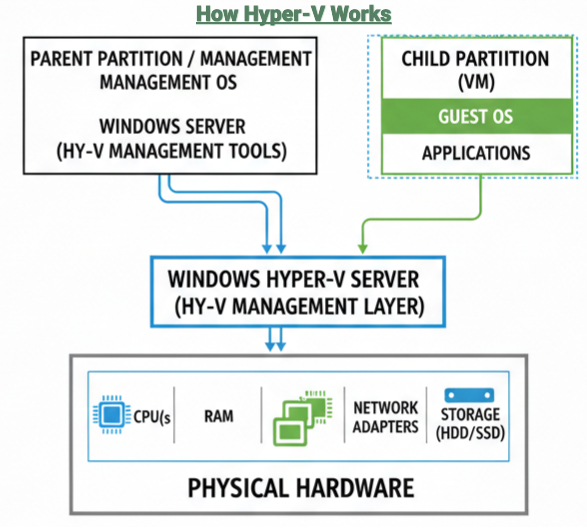
Hyper-V is Microsoft’s own tool for creating virtual machines. It is already built into Windows.
It lets you run several “virtual” computers on one physical machine. This means you can run different systems—like Windows and Linux—at the same time. It’s like having several separate computers inside your main one.
A. A Quick History
- 2008: Microsoft first released Hyper-V as part of Windows Server 2008.
- 2012: It became available on desktop computers with the release of Windows 8, making it easier for regular users to try.
- Today: It is a core part of Microsoft’s cloud platform, Azure, and is used by businesses all over the world to run their servers.
B. Why Choose Hyper-V?
Hyper-V is a top choice for many businesses, especially those already using Windows. Here are the main benefits:
- Saves Money: You can run many servers on just one physical computer. This means you spend less on hardware, electricity, and cooling.
- Keeps Your Business Running: If a physical server fails, Hyper-V can quickly move your virtual machines to another one. This keeps your website or apps online even during a disaster.
- Strong Security: It keeps each virtual machine completely separate. It also has a feature called Shielded VMs that protects your most sensitive data from being stolen.
- Easy to Scale: You can easily add more power to a virtual machine as your company grows. It also balances the workload automatically so no single server gets overwhelmed.
- Fast Setup: Instead of waiting days for new hardware to arrive, you can set up a new testing or development environment in just a few minutes.
- Perfect for Windows Users: Since it is built into Windows, it works perfectly with other Microsoft tools. You can even connect it easily to Azure, Microsoft’s cloud platform.
Key Insight: Best for Windows Teams. If your business already uses Microsoft tools like Active Directory or Office 365, Hyper-V is the natural choice. It integrates perfectly with your existing setup, making it much easier for your IT team to manage everything from one place.
Check Out Windows VPS Server Hosting →
C. Challenges of Using Hyper-V
Even though Hyper-V is powerful, it has some drawbacks that you should keep in mind:
- Slower for Linux: Hyper-V is built for Windows. While it can run Linux, it often isn’t as fast or smooth as it is on KVM.
- Heavy on Resources: Hyper-V can be “hungry” for power. You need a very strong computer with plenty of RAM and a fast processor to keep things running smoothly.
- Specific Hardware Needs: It won’t work on just any computer. Your hardware must support specific virtualization features (like Intel VT or AMD-V). It also doesn’t play well with software that needs direct access to hardware, like some high-end games.
- Windows-Focus: If your office uses a mix of many different systems (not just Microsoft), Hyper-V can be harder to manage. Licensing for non-Windows systems can also get complicated and expensive.
- Complex for Large Teams: As you add more and more virtual machines, managing them gets difficult. To handle a large network, you might need to buy extra tools like System Center.
- Memory Tracking: Hyper-V can automatically adjust the amount of memory a VM uses. While this sounds helpful, it can make it hard to track exactly how much power your server has left.
4. KVM vs Hyper-V: Feature Comparison
| Feature | KVM | Hyper-V |
|---|---|---|
| Host OS | Linux | Windows |
| Open Source | ✅ | ❌ |
| License Cost | Free | Paid (Windows) |
| Performance Overhead | Low | Medium |
| Scalability | ✅ | ✅ |
| Live Migration | ✅ | ✅ |
| Snapshot Support | ✅ | ✅ |
| Storage Flexibility | High | Medium |
| Network Customization | High | Medium |
| GPU Passthrough | ✅ | Limited |
| NUMA Support | ✅ | ✅ |
| Cloud Compatibility | Excellent | Good |
| Automation / CLI | Strong | Moderate |
| Management UI | Basic | Advanced |
| Security Isolation | Strong | Strong |
| Resource Control | Fine-grained | Standard |
| Backup Integration | Flexible | Native |
| Enterprise Adoption | High | Very High |
| DevOps Friendly | ✅ | ❌ |
5. Conversion Between KVM and Hyper-V
Sometimes, you may need to transfer your work from one system to another. This is called conversion. Here is the simple way to do it both ways.
A. Moving from KVM to Hyper-V
If you want to move a virtual machine from KVM to a Windows environment, follow these three steps:
- Install the Tool: First, download and install qemu-img on your computer.
- Convert the Disk: Open your command tool and run this command:
- (This changes the Linux file format into a Windows file format.)
qemu-img.exe convert source.qcow2 -O vhdx -o subformat=dynamic destination.vhdx- Set Up in Hyper-V: Open Hyper-V, create a new virtual machine, and select the new file you just created as the hard drive.
B. Moving from Hyper-V to KVM
Moving a machine from Windows back to Linux takes a few more steps:
- Export the VM: Turn off your machine in Hyper-V. Right-click it and choose Export. Save the files to a folder.
- Copy the File: Move the VHDX file from your Windows computer to your KVM (Linux) host.
- Convert the File: On your Linux machine, install virt-v2v and run this command:
sudo virt-v2v -i disk source.vhdx -o local -of qcow2 -os targetfile- Create the New VM: * Open your Virtual Machine Manager (VMM) on Linux.
- Choose “Import existing disk image.”
- Find your converted file and select the correct Operating System.
- Set your CPU and Memory to match the old machine, then click Begin Installation.
6. Final Thoughts: Which One is Right for You?
Choosing between KVM and Hyper-V really depends on your current setup and your budget. Neither one is “better” than the other; they just serve different needs.
- Go with KVM if you love Linux, want to save money on licenses, or need a lightweight system that you can customize. It’s the go-to choice for cloud providers and tech-savvy users who want total control.
- Go with Hyper-V if your office runs on Windows. It is easy to set up, comes with great support from Microsoft, and is very simple to manage if you prefer clicking buttons over typing commands.
The good news is that you aren’t stuck forever. As we showed in the conversion guide, you can always move your virtual machines if your needs change later.
Leave a Reply