
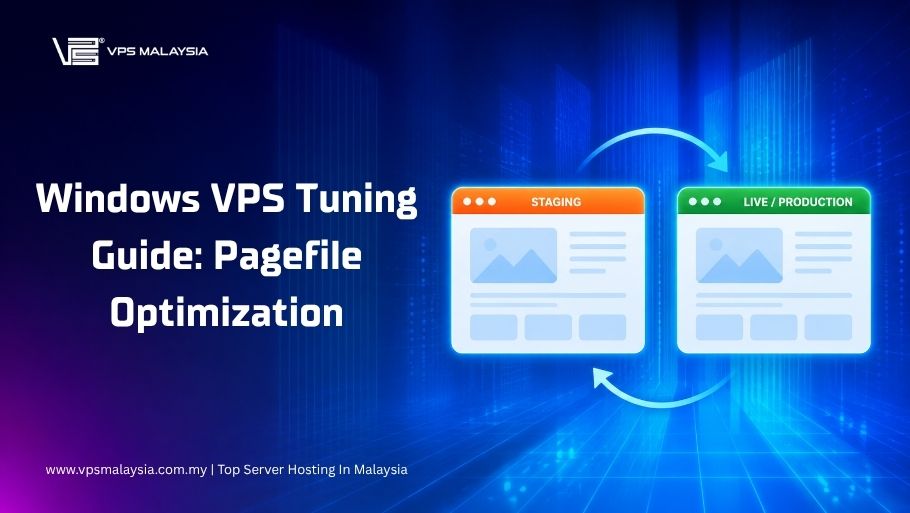



1. What Is a Staging Environment in a Hosting Dashboard?
A staging environment is a private, isolated copy of your live website where you can test updates, plugins, themes, or code changes without affecting visitors on your real site. Most modern hosting dashboards — including cPanel, Plesk, and managed WordPress panels — now include a built-in staging feature that clones your site with one click, lets you make changes safely, and then pushes those changes live once verified, all without needing FTP, manual database exports, or third-party plugins.
This guide walks through setting up staging directly from your hosting dashboard, syncing changes correctly, and avoiding the most common mistakes that cause staging-to-live deployments to break.
2. Why Use a Built-In Staging Feature Instead of Manual Methods
Before dashboard-integrated staging became standard, developers manually cloned sites by exporting databases, zipping files, and configuring a subdomain — a process prone to broken paths, missed files, and serialized URL errors in WordPress. Built-in staging tools solve these pain points by handling the technical groundwork automatically:
- One-click cloning of files and databases, including correct URL replacement.
- Isolated subdomain or path (e.g.,
staging.yourdomain.com) created automatically. - Selective sync controls to push only files, only the database, or both to production.
- No risk to live traffic since staging environments are not indexed or publicly linked by default.
- Faster testing cycles for plugin updates, theme changes, or custom code before client approval.
For agencies managing multiple client sites, this single feature can save hours per week compared to manual staging setups.
3. Where to Find Staging Tools in Common Hosting Dashboards
Staging environment access varies slightly depending on your hosting control panel:
3.1 cPanel
Look for a section labeled “Staging” or “WordPress Staging” under the Software or Domains category. Many hosts integrate this through Softaculous or a custom WordPress Toolkit.
3.2 Plesk
Plesk includes a dedicated WordPress Toolkit, where staging is managed under each installed WordPress instance via a “Clone/Migrate” button.
3.3 Custom Managed Hosting Panels
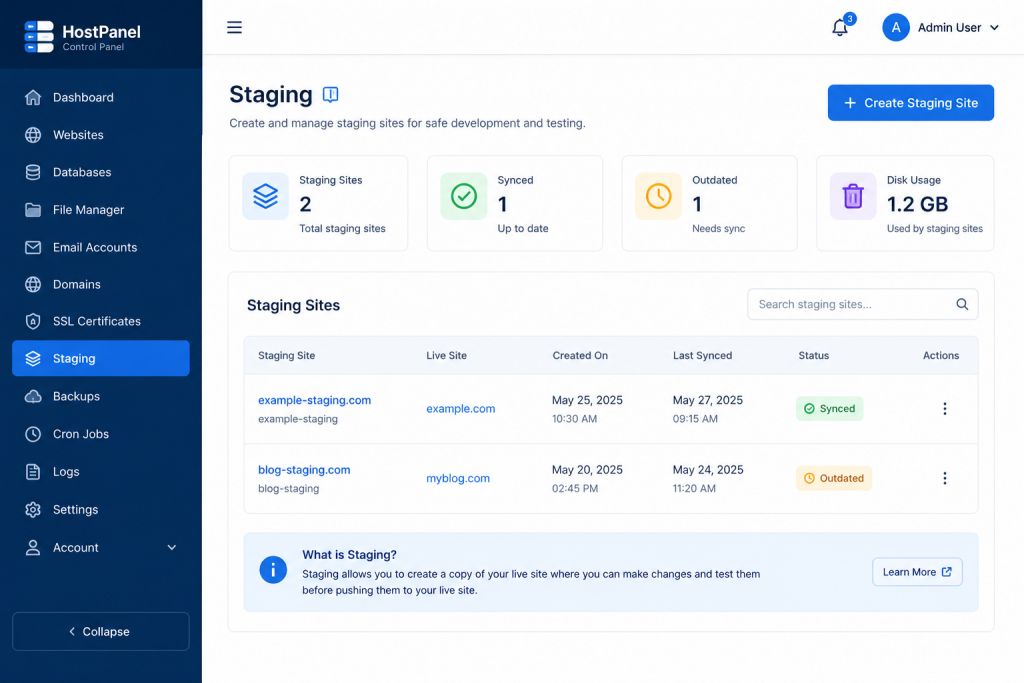
Many managed WordPress hosts (and increasingly, general VPS hosting dashboards) include a dedicated “Staging” tab directly on the site’s overview page, often with a visual toggle between “Production” and “Staging” views.
If you don’t see a staging option in your current dashboard, check your hosting plan tier — staging tools are sometimes reserved for mid-to-higher tier plans, or may require enabling a specific toolkit/module first.
4. Step-by-Step: Creating a Staging Environment
While exact button labels differ by host, the general workflow is consistent across most dashboards:
- Log in to your hosting dashboard and navigate to your site or domain’s management page.
- Locate the Staging or Clone option, usually found under Site Tools, WordPress Toolkit, or a dedicated Staging tab.
- Click “Create Staging Environment” (or equivalent). The system will begin cloning your files and database.
- Choose a staging subdomain if prompted — most systems auto-generate one like
staging.yourdomain.com. - Wait for the cloning process to complete. This typically takes a few minutes depending on site size.
- Access your staging site via the provided URL or a direct login link from the dashboard.
- Verify the clone is functioning correctly — check pages, forms, and any database-dependent features.
- Make your intended changes on staging: install plugins, update themes, test code, or redesign sections.
- Test thoroughly, including on mobile views and with caching disabled if applicable.
- Push changes live using the dashboard’s “Deploy to Production” or “Push to Live” function once you’re confident everything works as expected.
5. Choosing What to Sync: Files, Database, or Both
Most dashboard staging tools offer granular control over what gets pushed from staging back to your live site. Understanding these options prevents accidental overwrites:
| Sync Option | Use When |
|---|---|
| Files only | You changed theme files, custom code, or static assets but didn’t modify content |
| Database only | You updated content, settings, or made changes within the CMS admin panel |
| Files + Database | You made a combination of code and content changes (most common for major updates) |
| Selective tables | You only need specific plugin settings or custom post types synced, not the entire database |
Caution: Pushing a full database sync from staging to live will overwrite any content changes made on the live site since staging was created — such as new blog posts, form submissions, or e-commerce orders. Always check for live-side changes before a full sync.
6. Best Practices for Using Staging Environments Effectively
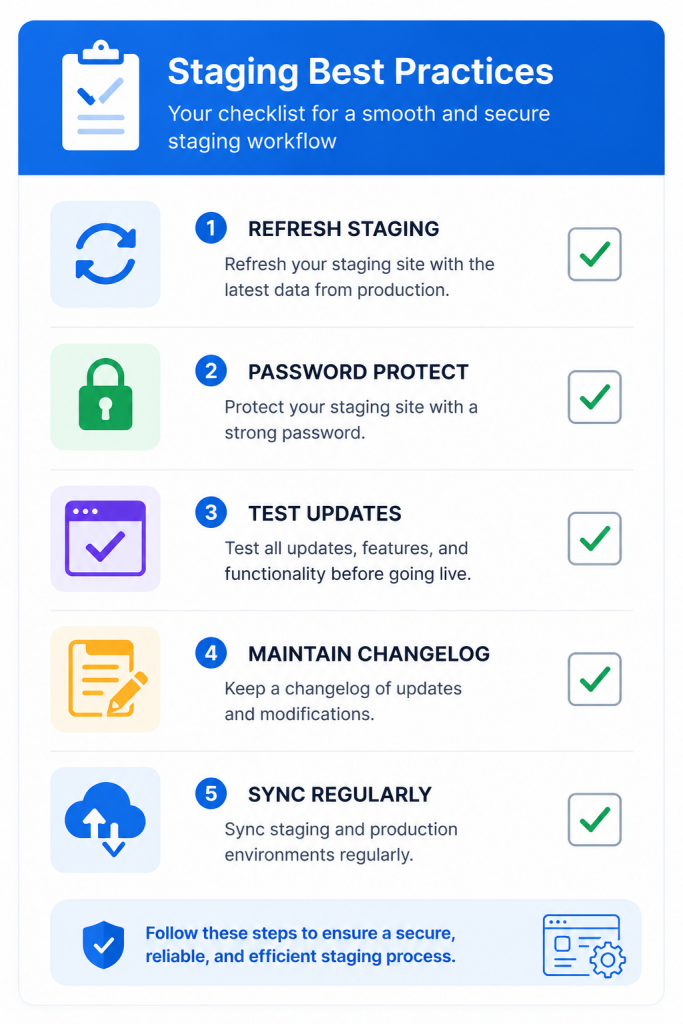
6.1 Keep Staging Updated, Not Stale
Refresh your staging clone periodically, especially before testing major updates, so it accurately reflects your current live environment rather than an outdated snapshot.
6.2 Password-Protect Staging Sites
Most dashboard staging tools automatically restrict public access, but double-check this setting — an unprotected staging URL can be indexed by search engines or discovered by visitors, creating duplicate content issues.
6.3 Test Plugin and Theme Updates First
Before applying WordPress core, theme, or plugin updates on your live site, run them on staging first to catch compatibility issues without risking downtime.
6.4 Document Your Changes
Keep a simple changelog of what was modified on staging before pushing live, especially when working with a team, so deployments are predictable and reversible if something breaks.
6.5 Avoid Long-Term Divergence
Don’t let staging and production drift too far apart in functionality. The longer they diverge, the higher the risk of sync conflicts or broken pushes later.
7. Common Issues When Using Dashboard Staging Tools
7.1 Staging Site Shows Broken Links or Missing Styles
This usually happens when URLs weren’t correctly rewritten during cloning. Most modern dashboard tools handle this automatically, but if it occurs, check the staging site’s domain settings within your CMS (e.g., WordPress’s Site URL and Home URL settings).
7.2 Sync Button Greyed Out or Failing
This is often caused by file permission issues, exceeded storage quotas, or a sync conflict from manual changes made directly on the live server during the staging period. Check your hosting dashboard’s error logs or contact support if it persists.
7.3 Staging Environment Counts Against Resource Limits
On some VPS or shared hosting plans, staging sites consume disk space and may count toward bandwidth or resource allocations. Monitor your usage if you maintain staging environments long-term rather than deleting them after each deployment.
7.4 Changes Made Directly on Live Get Overwritten
If a client or team member edits the live site directly while staging is active, a full database push from staging can erase those changes. Establish a clear team policy: all changes go through staging first, never directly on production.
8. When Staging Isn’t Enough: Considering a Full Development Workflow
For larger projects or development teams, dashboard staging tools are excellent for quick testing and client review but aren’t a complete replacement for a structured development pipeline. Consider supplementing dashboard staging with:
- Version control (Git) for tracking code changes outside the CMS database.
- Local development environments for testing before even reaching staging.
- CI/CD pipelines for automated testing and deployment in more complex applications.
Dashboard staging remains ideal for content-driven sites, small-to-medium business websites, and agencies needing fast, low-friction testing — but custom application development often benefits from a more robust multi-environment setup (local → staging → production).
9. Frequently Asked Questions
9.1 Is a staging site visible to the public or search engines?
By default, most hosting dashboard staging tools restrict public access and add a noindex tag automatically. Always verify this setting manually before assuming it’s protected.
9.2 Can I create multiple staging environments for one site?
Some hosting dashboards support multiple staging copies (useful for testing different features in parallel), while others allow only one active staging environment per site at a time. Check your specific host’s plan limitations.
9.3 Does creating a staging site slow down my live website?
No — staging environments run as separate, isolated copies and don’t draw resources from your live site’s runtime performance, though they do consume additional disk space on your hosting plan.
9.4 What happens if I delete a staging environment?
Deleting staging removes the cloned files and database copy entirely. It does not affect your live site, since staging operates independently once created.
9.5 Can I use staging environments on a VPS, or only shared hosting?
Staging features are increasingly available on VPS hosting dashboards too, particularly with managed control panels like Plesk or custom panels offering WordPress Toolkit integration.
10. Final Thoughts
Built-in staging environments have removed one of the biggest historical pain points in website management — the risk of testing changes directly on a live site. By using the staging tools already available in your hosting dashboard, you can safely test plugin updates, design changes, and custom code, then push verified changes live with confidence. The key to using staging effectively is discipline: sync deliberately, password-protect your staging URL, and avoid letting staging and production drift too far apart over time.
Leave a Reply