1. What Is a Pagefile on a Windows VPS?
A pagefile (also called virtual memory) is a reserved space on your VPS’s disk that Windows uses as overflow when physical RAM is fully utilized. On a Windows VPS — where RAM is often limited and costly compared to a dedicated server — properly sized virtual memory prevents application crashes, “out of memory” errors, and unexpected reboots during traffic spikes or heavy background processes like Windows Update or antivirus scans.
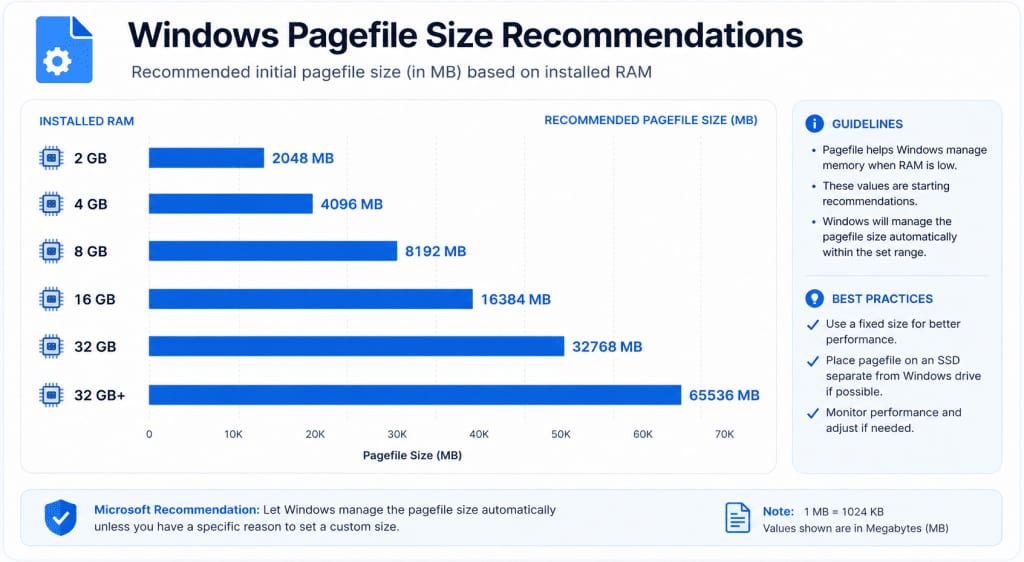
The general rule of thumb: set your pagefile to 1.5x your installed RAM for general workloads, though database servers and application servers running ASP.NET, MSSQL, or Java-based services often need custom sizing based on actual memory pressure.
2. Why Virtual Memory Tuning Matters on a VPS
Unlike a physical workstation, a Windows VPS typically runs with constrained RAM allocations — 2GB, 4GB, or 8GB plans are common for cost efficiency. This makes pagefile configuration far more consequential than on a desktop PC with 32GB of RAM sitting mostly idle.
Poorly tuned virtual memory on a VPS leads to:
- Application crashes when RAM is exhausted and the pagefile can’t absorb the overflow.
- Sluggish performance when the pagefile is undersized and Windows aggressively compresses memory instead.
- Disk I/O bottlenecks when the pagefile is oversized on slow storage, causing excessive read/write cycles.
- “System running low on memory” warnings during peak traffic on hosted websites or applications.
- Unstable MSSQL or IIS application pools that silently restart under memory pressure.
Because VPS environments share underlying hardware resources with other tenants (even when RAM and CPU are isolated), disk I/O performance for the pagefile can vary — making it important to tune conservatively and monitor actively rather than relying on Windows’ default automatic management.
3. How Windows Manages Virtual Memory by Default
By default, Windows Server uses “Automatically manage paging file size for all drives,” which dynamically resizes the pagefile based on current memory demand. While convenient, this default behavior has drawbacks for VPS environments:
- It can grow unpredictably during memory-intensive operations, consuming valuable disk space on storage-limited VPS plans.
- It doesn’t account for the specific workload your VPS is running (e.g., a single ASP.NET app vs. multiple background services).
- Automatic resizing itself consumes CPU and disk I/O cycles, which is wasteful on resource-constrained plans.
For most production Windows VPS instances, manually setting a fixed pagefile size is the more stable and predictable approach.
4. Recommended Pagefile Sizing Formulas
There’s no single perfect number, but these guidelines work well across common VPS configurations:
| VPS RAM | Recommended Pagefile Size | Notes |
|---|---|---|
| 2GB | 4–6GB | Minimum viable for light websites/apps |
| 4GB | 6–8GB | Good for small ASP.NET or WordPress-on-Windows setups |
| 8GB | 8–12GB | Suitable for medium traffic apps with MSSQL |
| 16GB | 8–16GB | Pagefile ratio can shrink as RAM grows |
| 32GB+ | 4–8GB (fixed) | Mainly for crash dump capture, not active swapping |
Why the ratio shrinks as RAM increases: the more physical RAM available, the less your system depends on disk-based virtual memory for everyday operations. At higher RAM tiers, the pagefile mostly exists to support crash dumps and edge-case memory spikes rather than routine swapping.
5. Step-by-Step: Configuring Pagefile Size on Windows VPS
Follow these steps to manually configure virtual memory on your Windows Server VPS:
- Connect to your VPS via RDP using your administrator credentials.
- Open Control Panel → System → Advanced System Settings.
- Under the Advanced tab, click Settings in the Performance section.
- Go to the Advanced tab again, then click Change under Virtual Memory.
- Uncheck “Automatically manage paging file size for all drives.”
- Select the system drive (usually C:), choose Custom size.
- Enter your Initial size and Maximum size in MB (e.g., 6144 MB initial, 8192 MB maximum for a 4GB RAM VPS).
- Click Set, then OK, and restart the VPS to apply changes.
- After reboot, verify the pagefile size under Task Manager → Performance → Memory or via PowerShell (
Get-CimInstance Win32_PageFileUsage). - Monitor memory usage over the following days using Performance Monitor to confirm the new size handles peak load comfortably.
6. Moving the Pagefile to a Separate Disk (When Applicable)
If your Windows VPS plan includes multiple attached disks (common in higher-tier or custom VPS configurations), placing the pagefile on a separate disk from the OS drive can reduce I/O contention:
- Benefits: Reduces disk read/write competition between the OS and the pagefile, especially useful during heavy swapping events.
- Requirements: The secondary disk should ideally be SSD/NVMe-backed, not slower HDD-based storage, or performance will worsen rather than improve.
- Caution: Avoid placing the pagefile on a network-attached or remote storage volume, as latency spikes can cause severe instability.
For most standard single-disk VPS plans, this step isn’t necessary — but it’s worth knowing if you’re managing a more advanced setup.
7. Common Pagefile and Virtual Memory Issues on VPS
7.1 “Your system is low on virtual memory” Warning
This typically means either RAM is fully consumed by running applications, or the pagefile is too small to absorb overflow. Increase the maximum pagefile size and investigate which process is consuming excessive memory using Task Manager or Resource Monitor.
7.2 High Disk Usage With No Clear Cause
An undersized pagefile under heavy load can cause continuous resizing operations, spiking disk I/O. Switching to a fixed size (rather than automatic) usually resolves this.
7.3 Application Pool Crashes in IIS
ASP.NET application pools configured with restrictive memory limits can crash under pressure even if the pagefile is adequately sized. Check IIS Manager → Application Pool → Advanced Settings → Private Memory Limit alongside your pagefile configuration.
7.4 Pagefile Fragmentation
On older or heavily used VPS disks, a pagefile that has grown and shrunk repeatedly (under automatic management) can become fragmented, slightly degrading performance. Setting a fixed initial and maximum size from the start prevents this.
8. Monitoring Virtual Memory Usage Over Time
Tuning isn’t a one-time task — ongoing monitoring ensures your settings still fit your workload as traffic or application complexity grows:
- Task Manager → Performance tab gives a quick real-time snapshot of memory and commit charge.
- Resource Monitor (resmon.exe) shows detailed per-process memory and hard fault statistics.
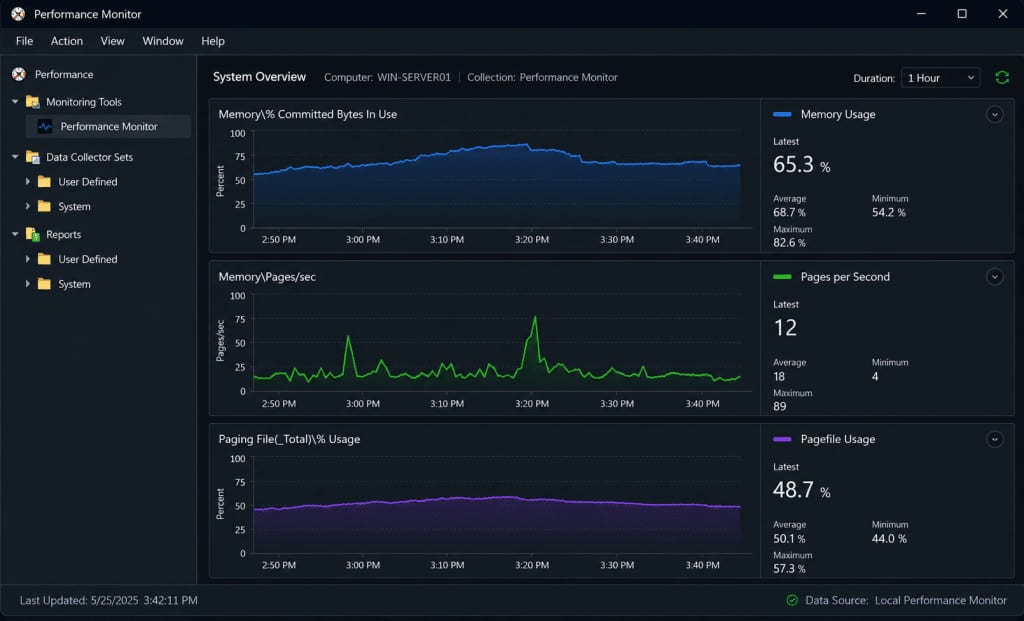
- Performance Monitor (perfmon) allows long-term logging of counters like
Memory\\Pages/secandPaging File\\% Usage, which are the most reliable indicators of whether your pagefile size is adequate. - Event Viewer logs warnings related to low virtual memory or application pool recycling tied to memory exhaustion.
A general health indicator: if Pages/sec consistently spikes above a few hundred during normal operation, it’s a sign that physical RAM — not just pagefile size — may need upgrading.
9. When to Upgrade RAM Instead of Tuning the Pagefile
Pagefile tuning helps manage memory pressure, but it isn’t a substitute for adequate physical RAM. Consider upgrading your VPS plan’s RAM allocation if:
- Your application consistently uses 80–90%+ of available RAM even after optimization.
- Increasing the pagefile size doesn’t meaningfully reduce crash frequency.
- Disk-based virtual memory is noticeably slower than RAM, causing visible application lag during high-traffic periods.
- You’re running memory-intensive workloads like MSSQL with large datasets, multiple IIS application pools, or in-memory caching layers.
Virtual memory is a safety net, not a performance multiplier — disk-based memory is always significantly slower than physical RAM, regardless of pagefile size.
10. Frequently Asked Questions
10.1 What is the ideal pagefile size for a 4GB RAM Windows VPS?
A range of 6–8GB generally provides enough overflow capacity for small to medium ASP.NET applications without consuming excessive disk space.
10.2 Should I disable the pagefile entirely on a high-RAM VPS?
No — even with abundant RAM, Windows uses the pagefile for crash dump generation and certain system processes. A small fixed pagefile (4–8GB) is still recommended.
10.3 Does increasing pagefile size improve performance?
Not directly. It prevents out-of-memory crashes, but disk-based virtual memory is far slower than RAM. True performance gains come from optimizing applications or upgrading physical RAM.
10.4 Can a misconfigured pagefile cause a VPS to crash?
Yes — if the pagefile is too small to handle memory overflow during peak demand, the system can become unresponsive or applications can crash unexpectedly.
10.5 How do I check current pagefile usage on Windows Server?
Use Task Manager’s Performance tab, or run Get-CimInstance Win32_PageFileUsage in PowerShell for precise current and peak usage statistics.
11. Final Thoughts
Virtual memory and pagefile tuning are often overlooked aspects of Windows VPS management, yet they directly affect application stability under real-world traffic and workload conditions. By moving away from Windows’ default automatic management and applying workload-appropriate fixed sizing — combined with ongoing monitoring through Performance Monitor — you can significantly reduce crash risk and keep ASP.NET, MSSQL, or other Windows-based applications running smoothly, even on resource-constrained VPS plans.
For long-term stability, treat pagefile tuning as part of a broader VPS health routine: review memory usage regularly, scale RAM when usage patterns demand it, and keep your pagefile configuration aligned with your actual workload rather than relying on defaults.